SETUP TUTORIALS

IPTV Setup Guide 2025
Install on Any Device

Fast â€ĸ Reliable â€ĸ Unlimited

Follow our easy step-by-step tutorials to set up your IPTV subscription on any device. Select your device below and get started in minutes.

Choose Your Device

Click your device to jump to its setup guide

📌 Important Note

We sell the IPTV subscription only. V12Mate (our recommended app) is free on Android & Firestick. You can use any player you prefer. However, third-party players like Hot Player and iMPlayer may require you to purchase their own paid license after the trial.

Think of it this way: your subscription is like a SIM card — you still need a phone (the player app) to use it.

đŸ”Ĩ

Fire TV Stick Setup Guide

âąī¸Time Required:5-10 minutes
📱Player:V12Mate Player
✅Difficulty:Beginner friendly

âš ī¸ If you already have TiviMate installed, please uninstall it first — otherwise V12Mate will not install correctly.
Compatible players: V12Mate
Part 1
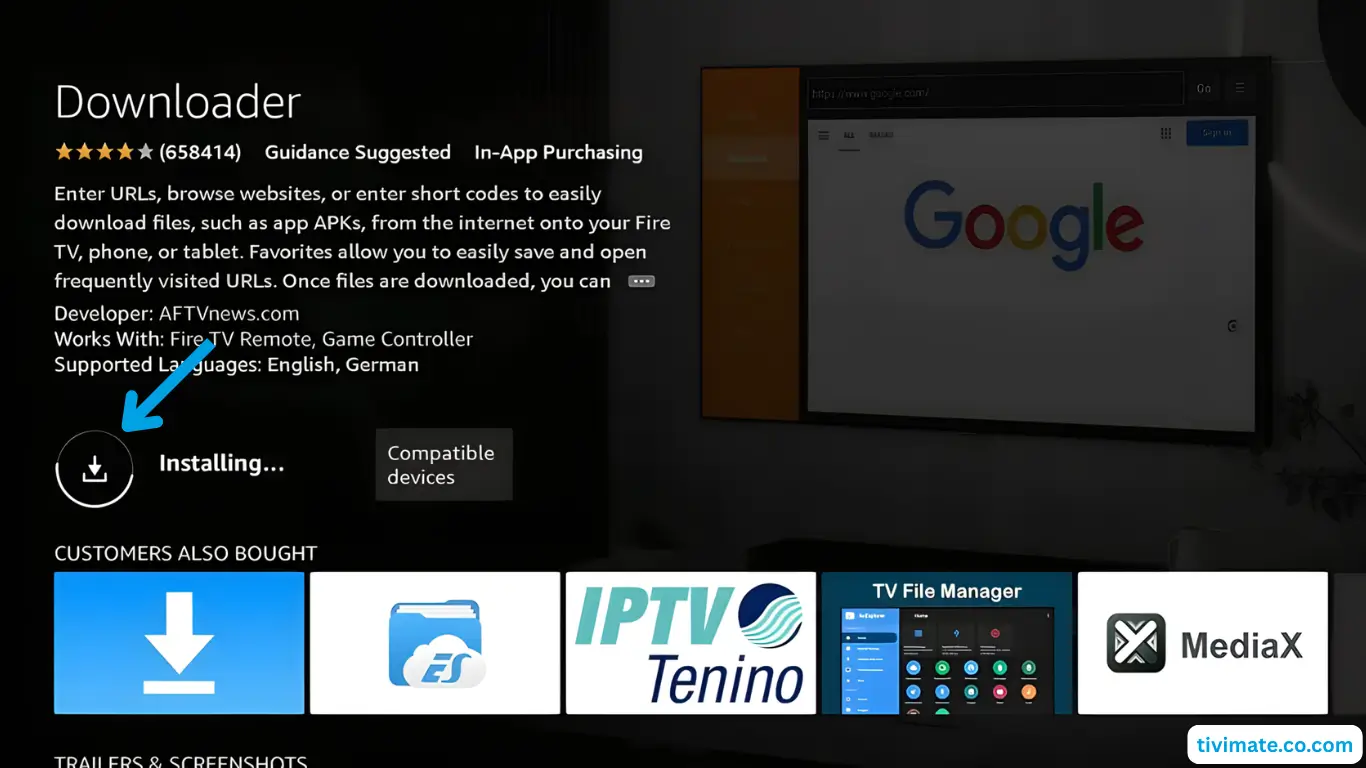
Install Downloader App
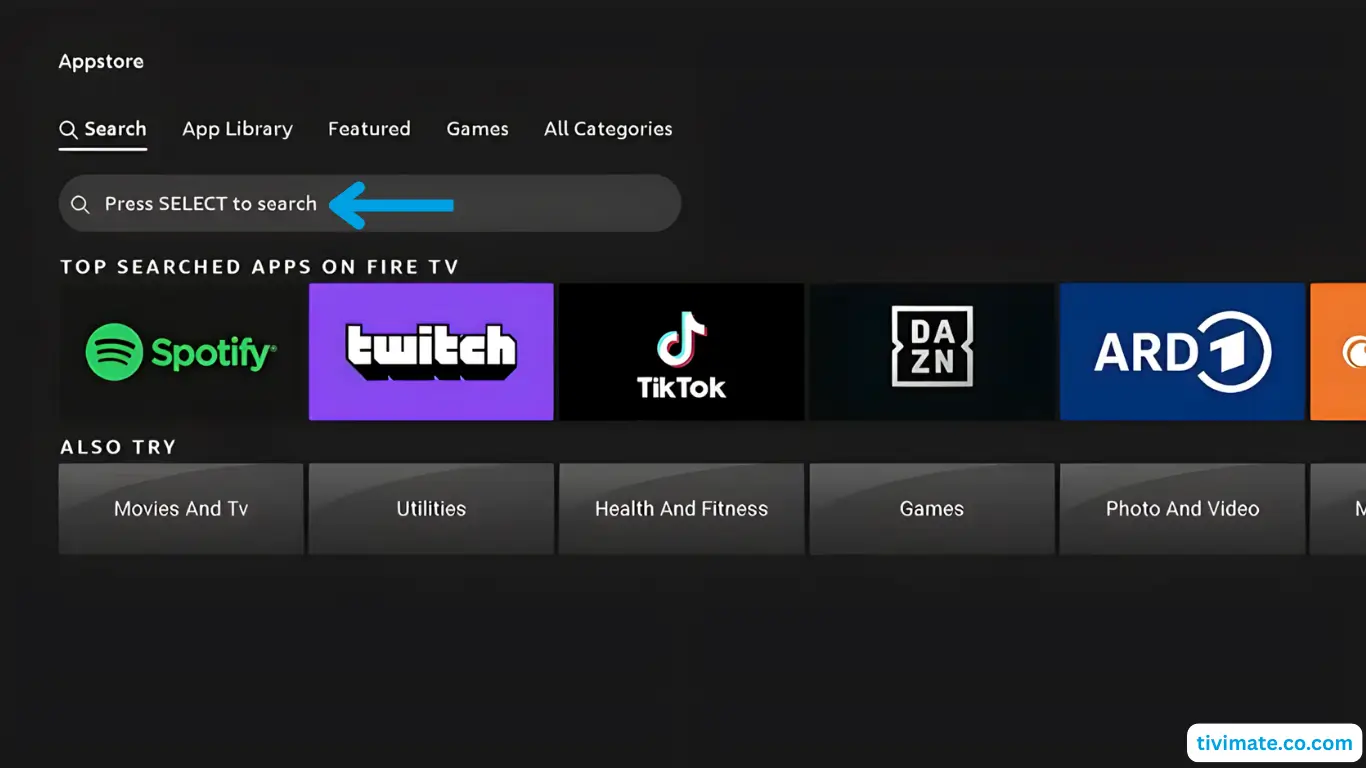
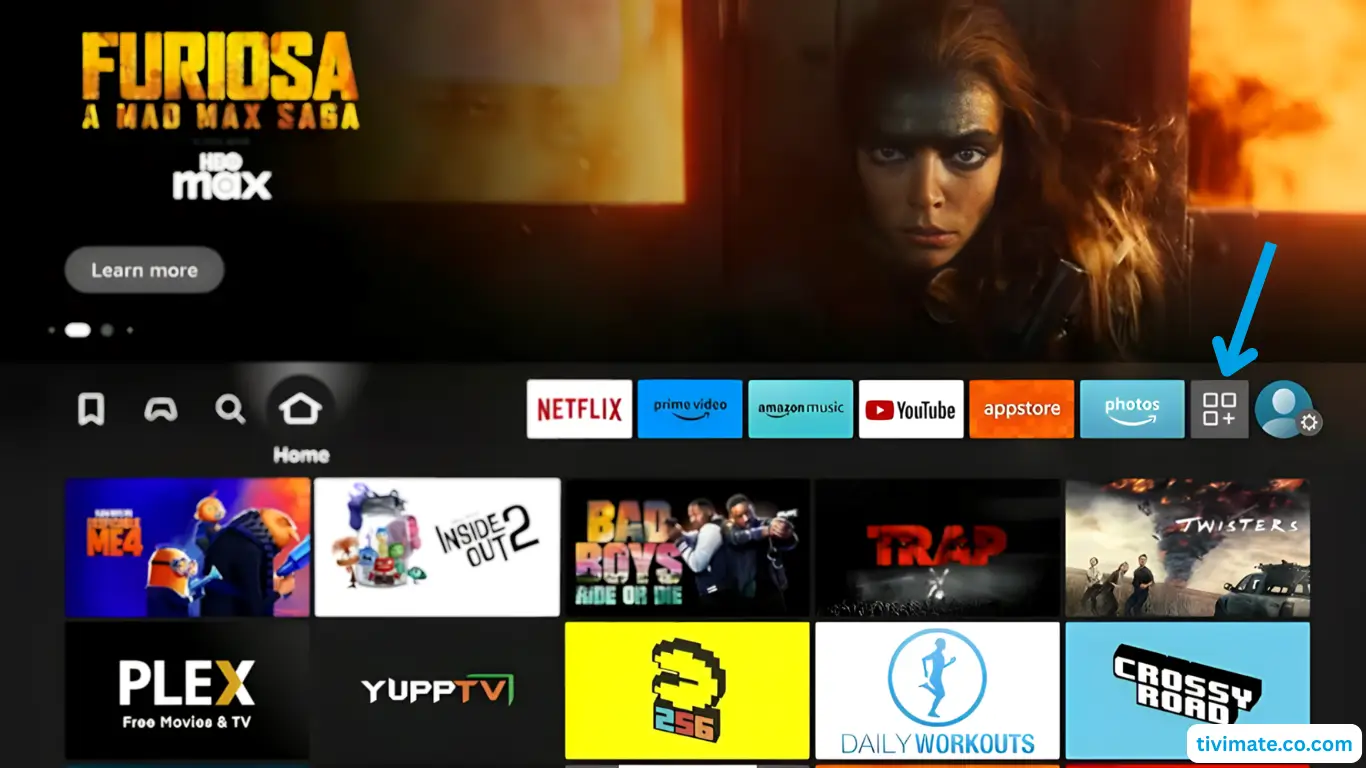
1Go to My Apps from the Fire TV home screen.

Step 1

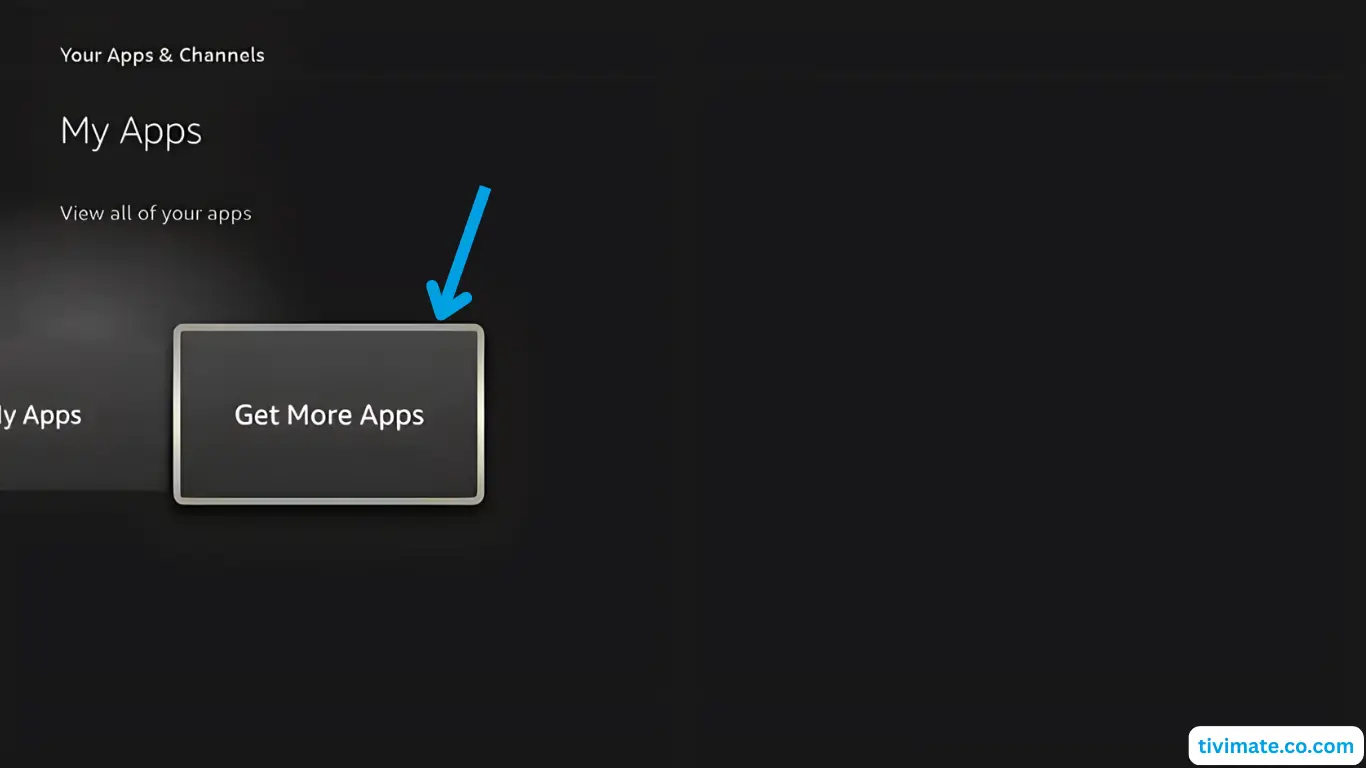
2Select Get More Apps.

Step 2

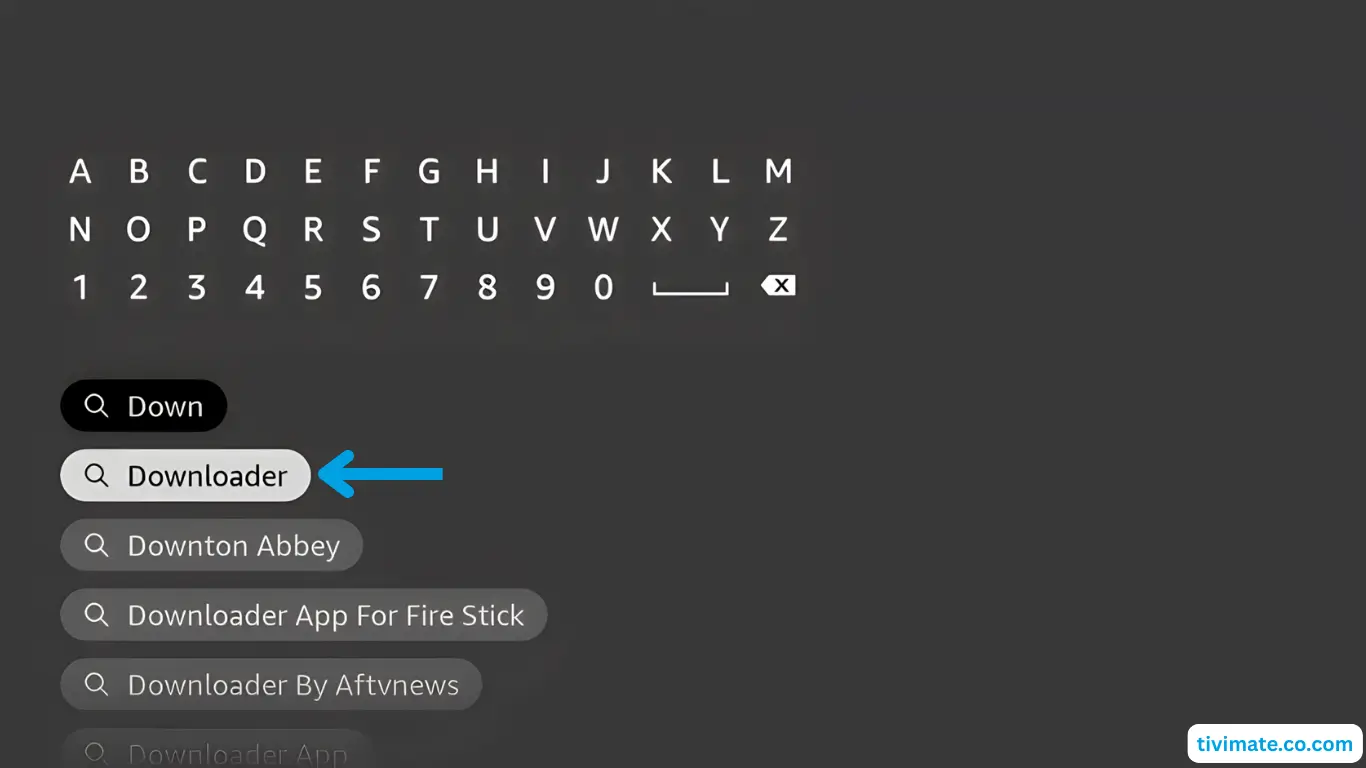
3Choose Search, press Down then OK, and type Downloader.

Step 3

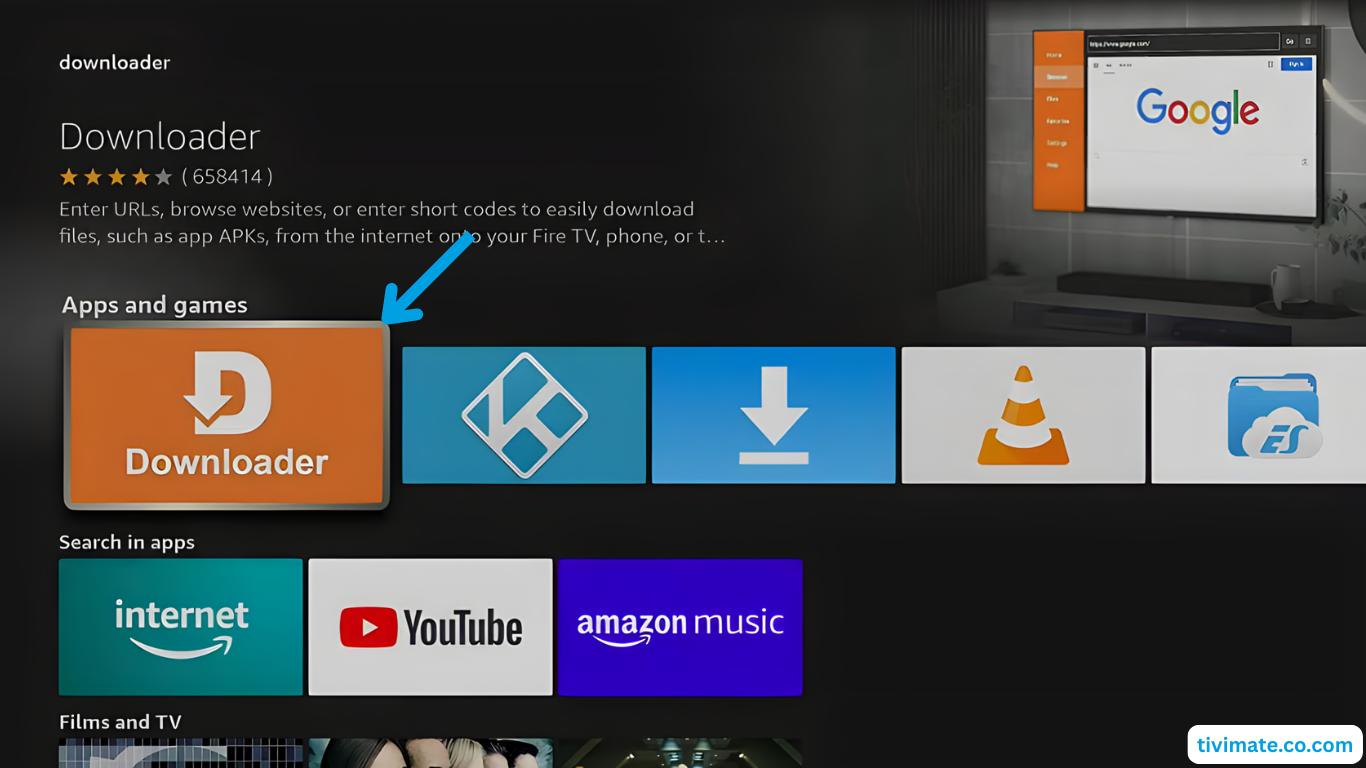
4When results appear, select Downloader and press OK.

Step 4

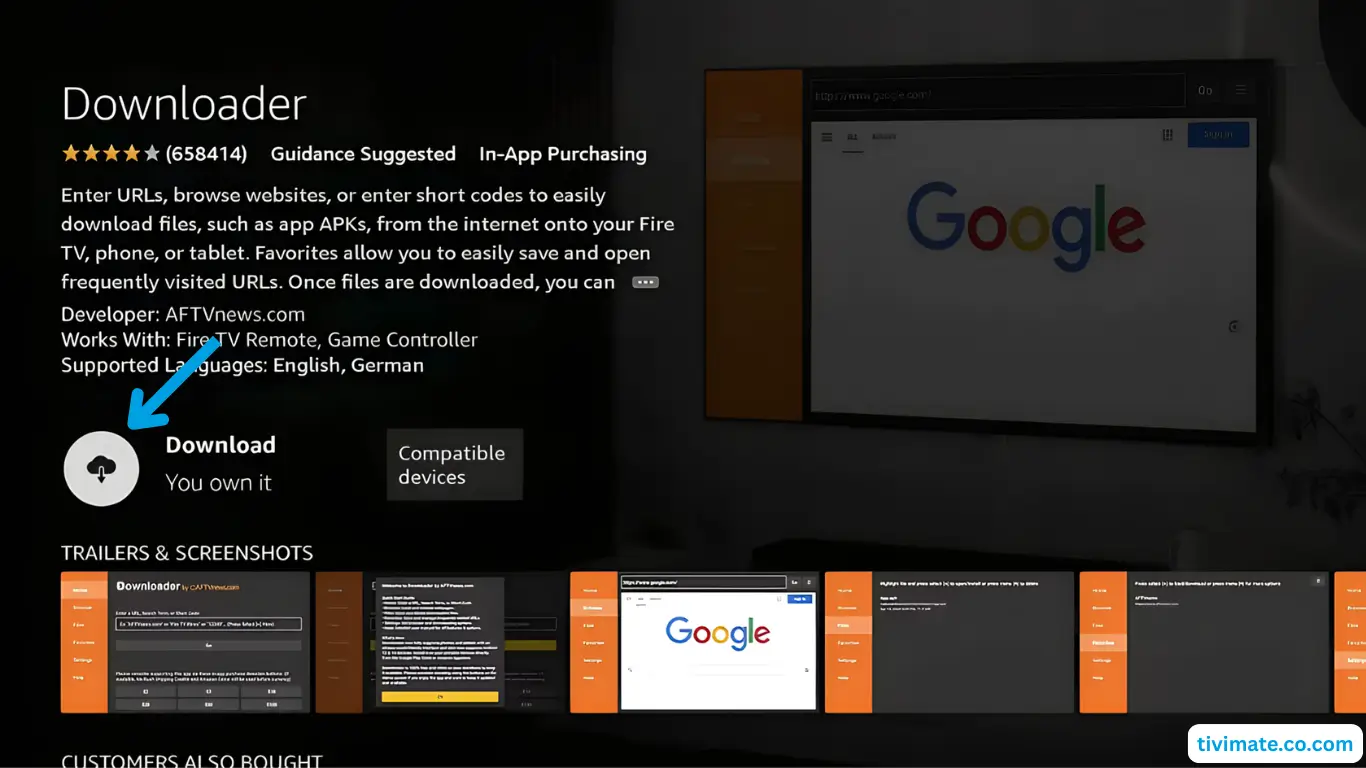
5Choose Downloader → Download.

Step 5

6Click Download and wait for the download to complete.

Step 6

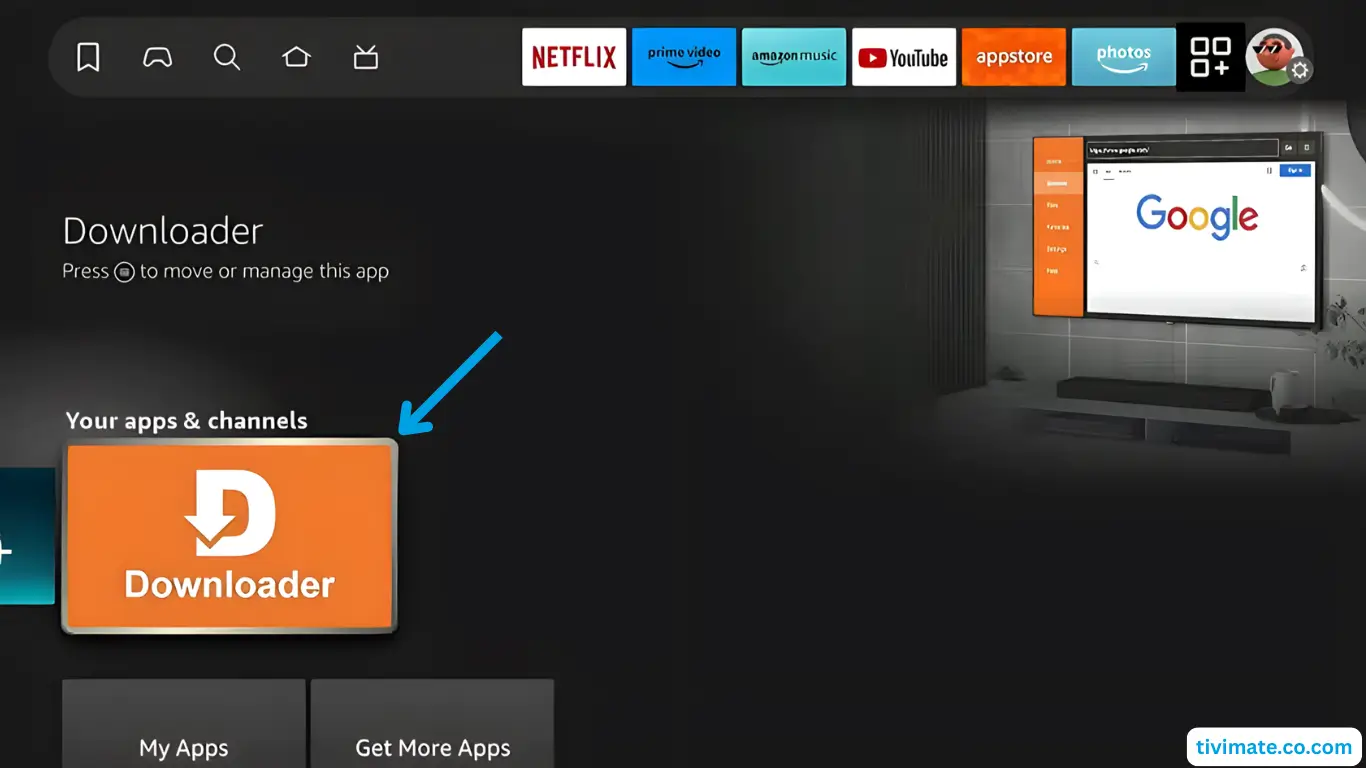
7Wait for it to download and install. Then press Back to return to the Home screen — do not open it yet.

Step 7

Part 2
Enable Developer Options & Unknown Sources
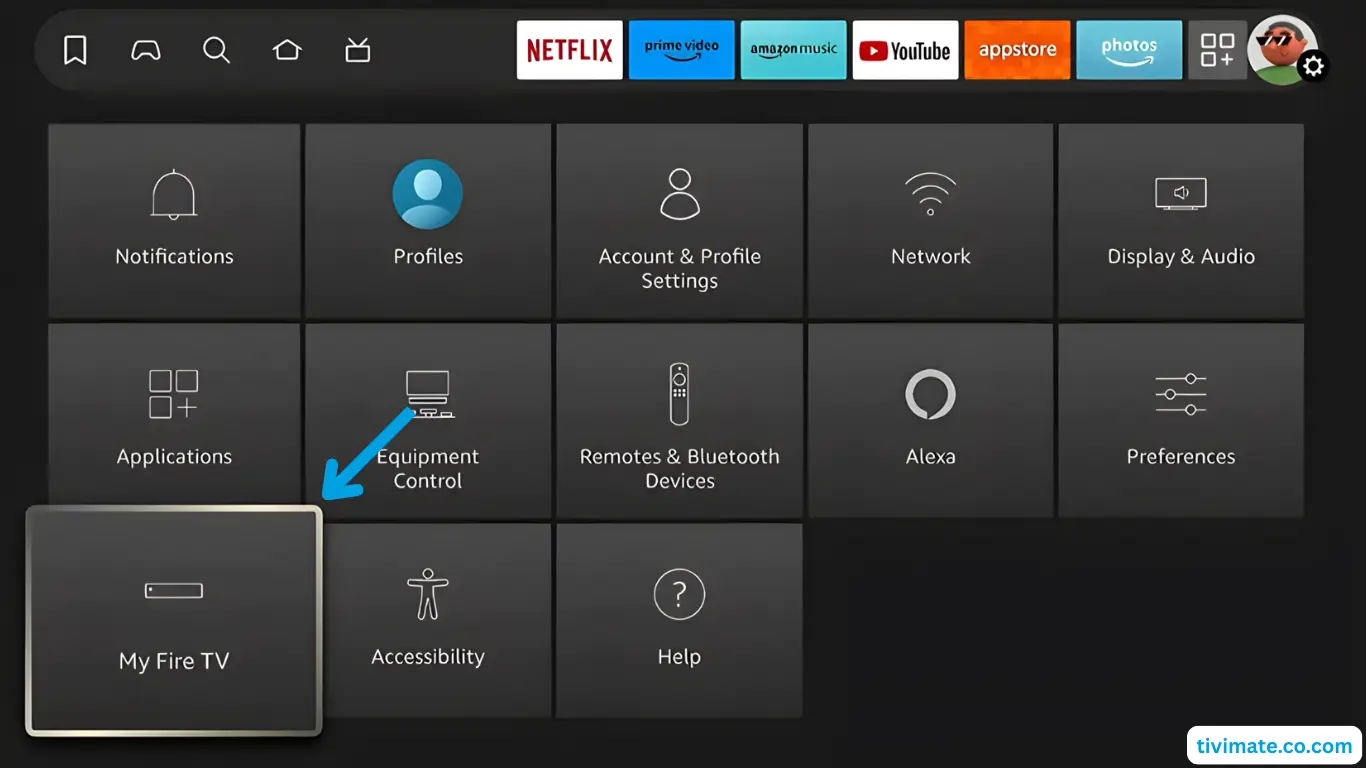
1Go to Settings → My Fire TV.

Step 1

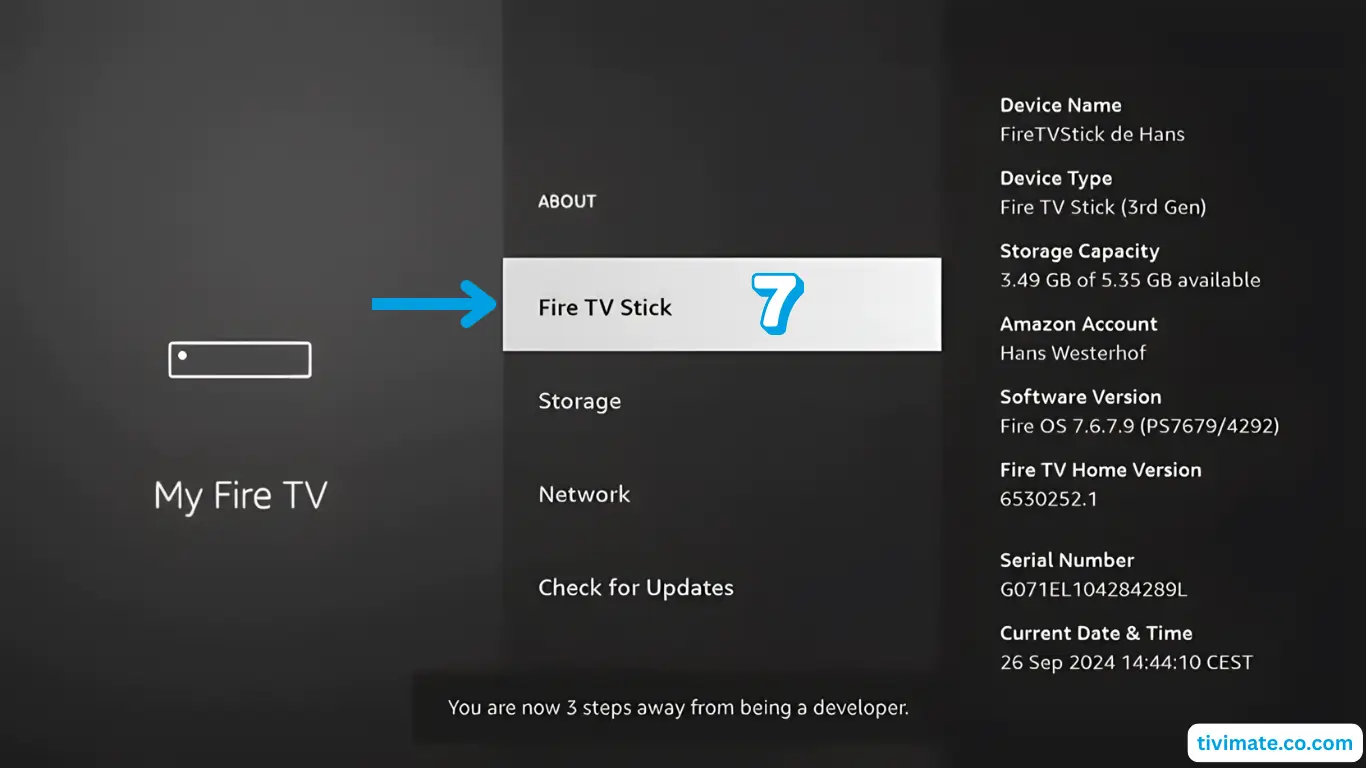
2Open About and click on Fire TV Stick 7 times to unlock Developer Options.

Step 2

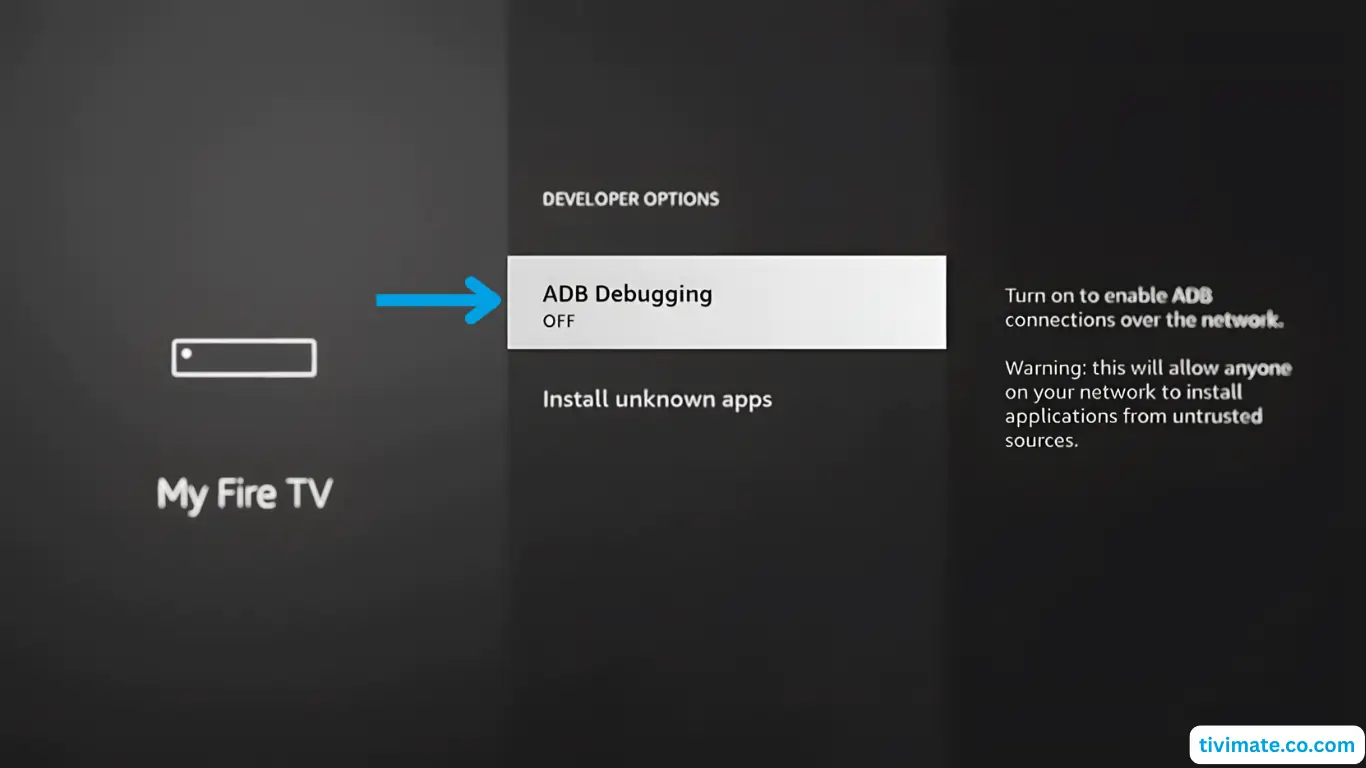
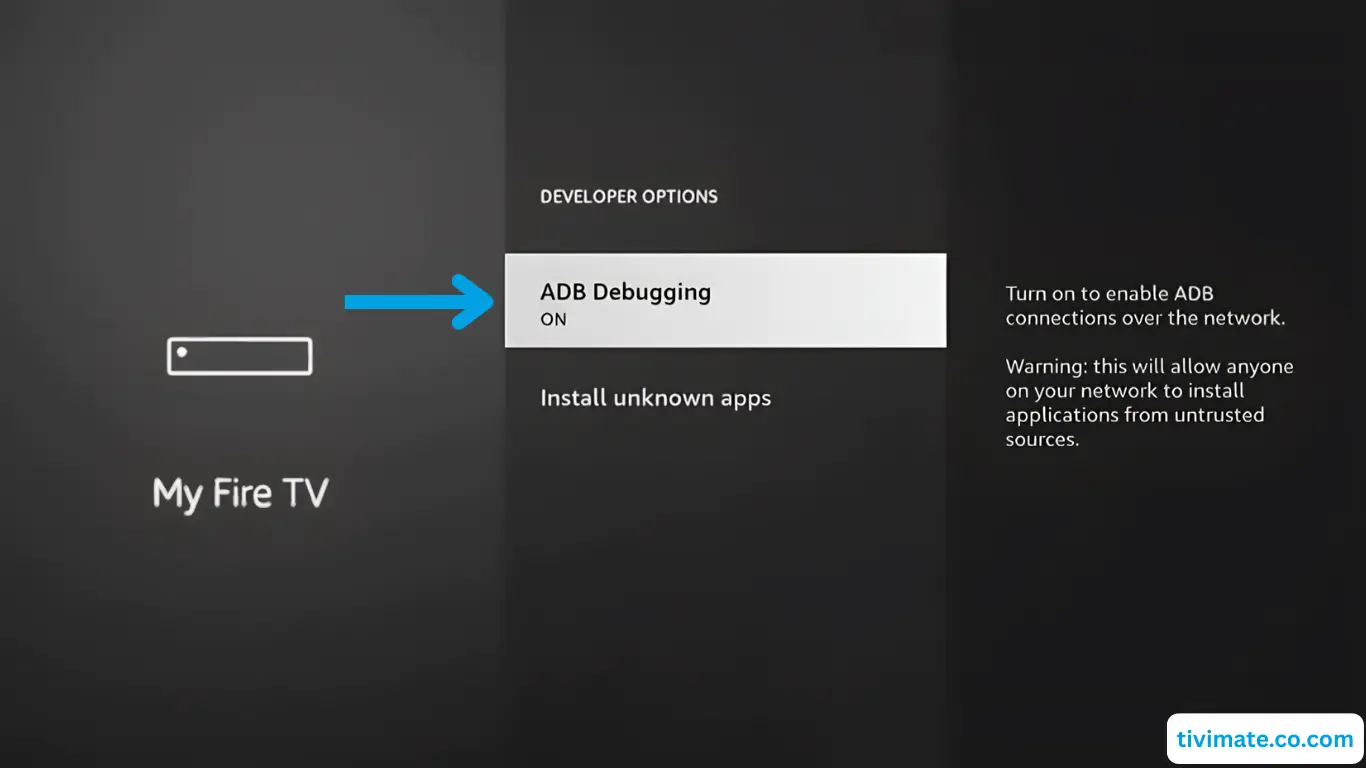
3Press Back, then go to Developer Options and enable ADB Debugging.

Step 3

4Confirm that ADB Debugging is ON.

Step 4

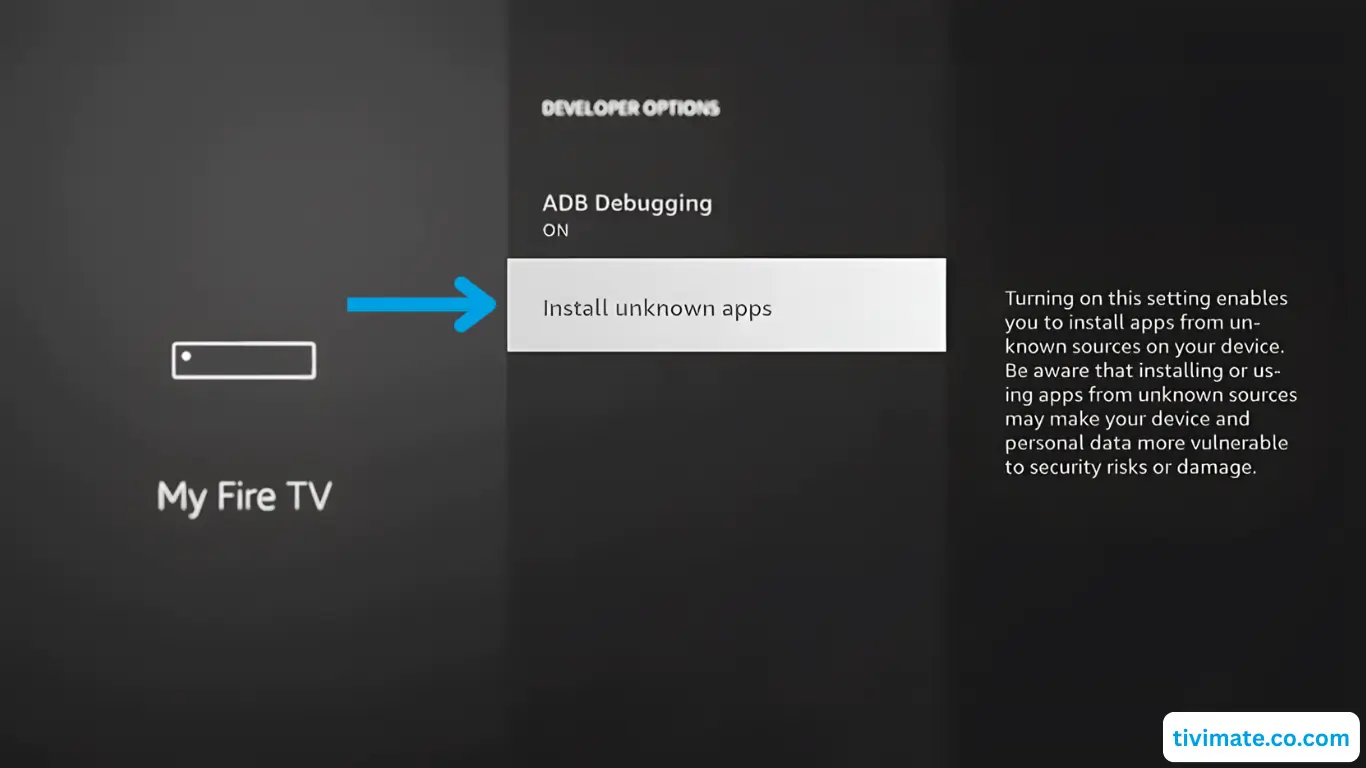
5Go to Install Unknown Apps, find Downloader and give it permission (press OK).

Step 5

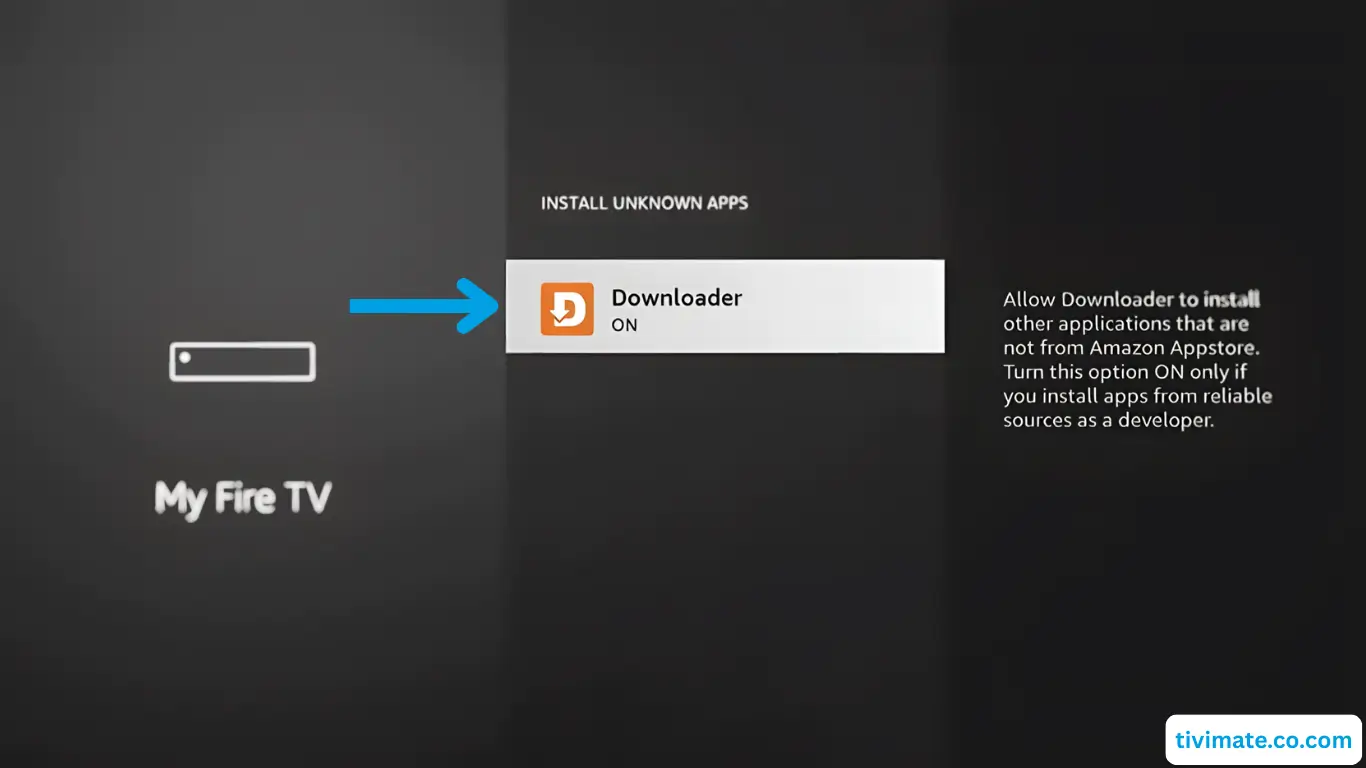
6Confirm Downloader is set to ON for unknown sources.

Step 6

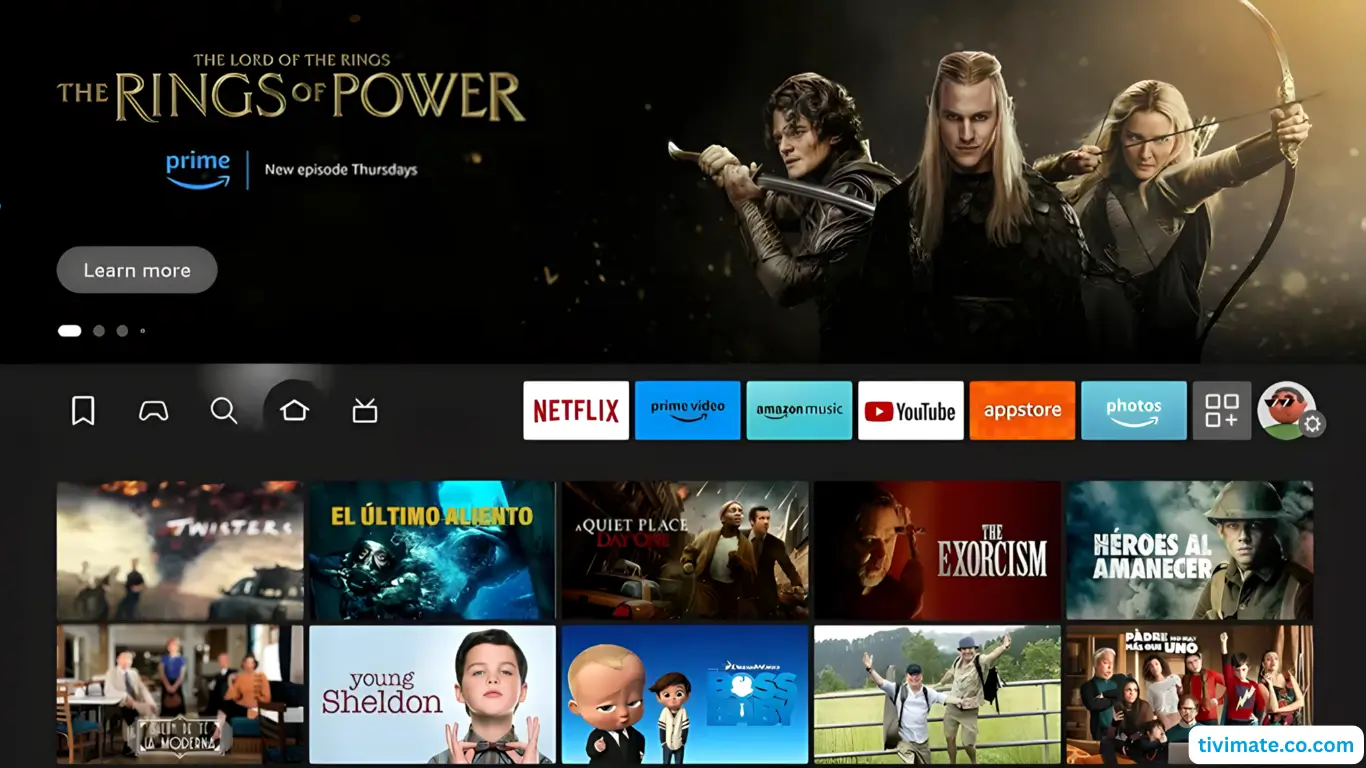
7Press the Home button on your remote to return to the home screen.

Step 7

Part 3
Install V12Mate via Downloader
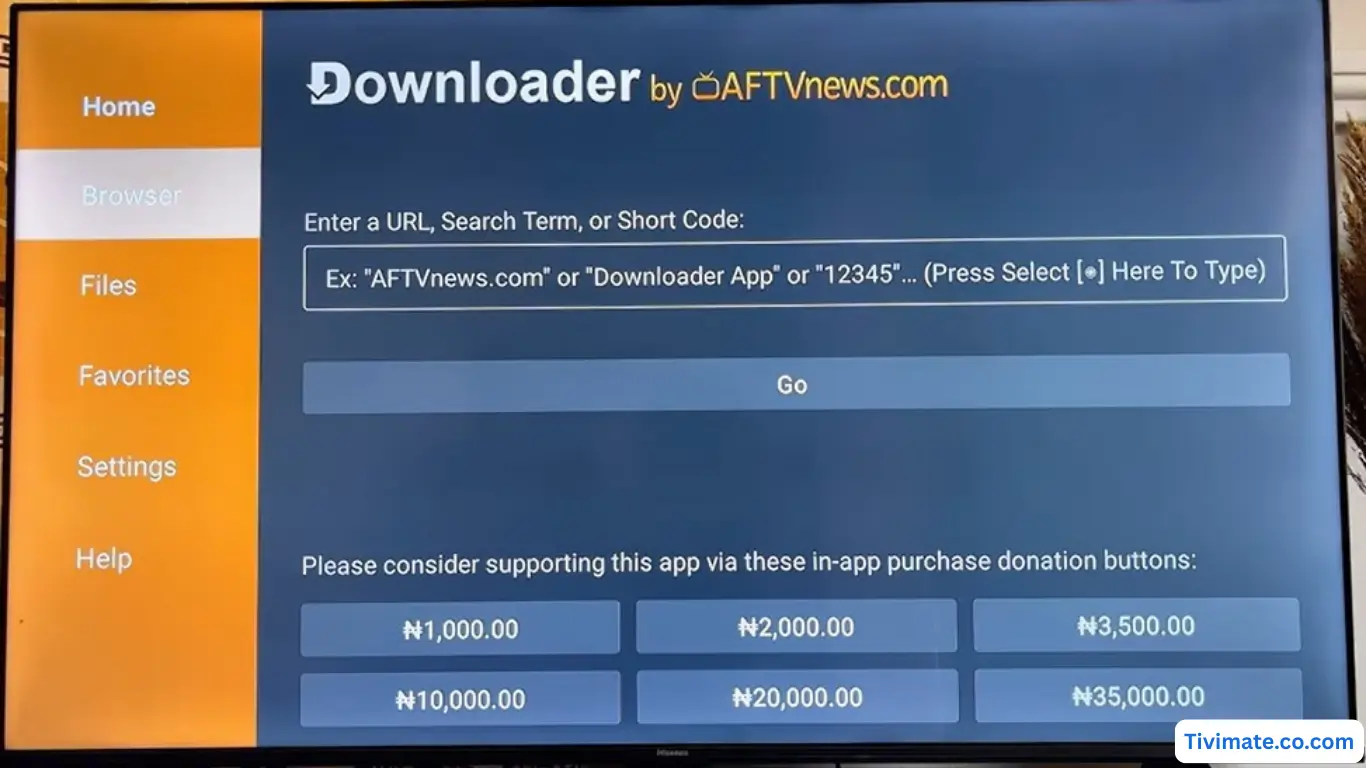
1Open the Downloader app.

Step 1

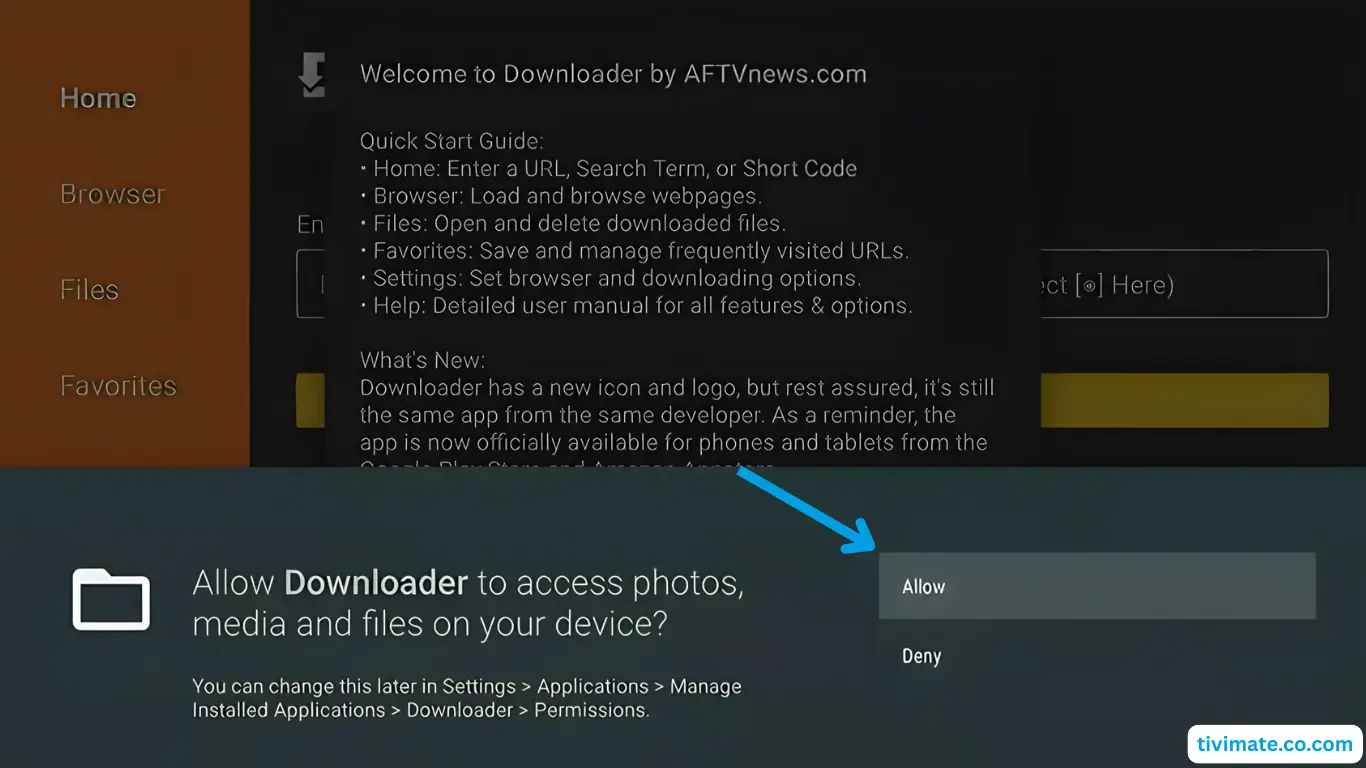
2Press Allow to grant Downloader access to your file system.

Step 2

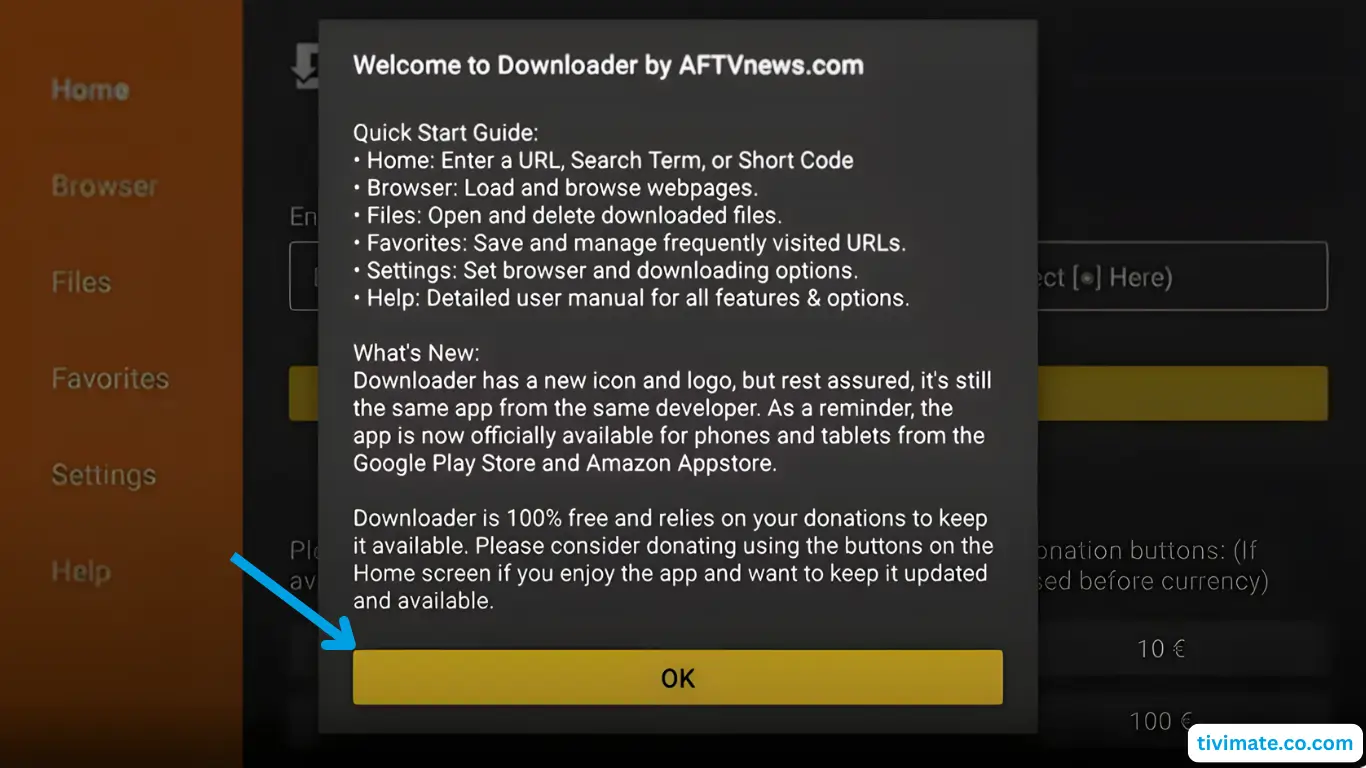
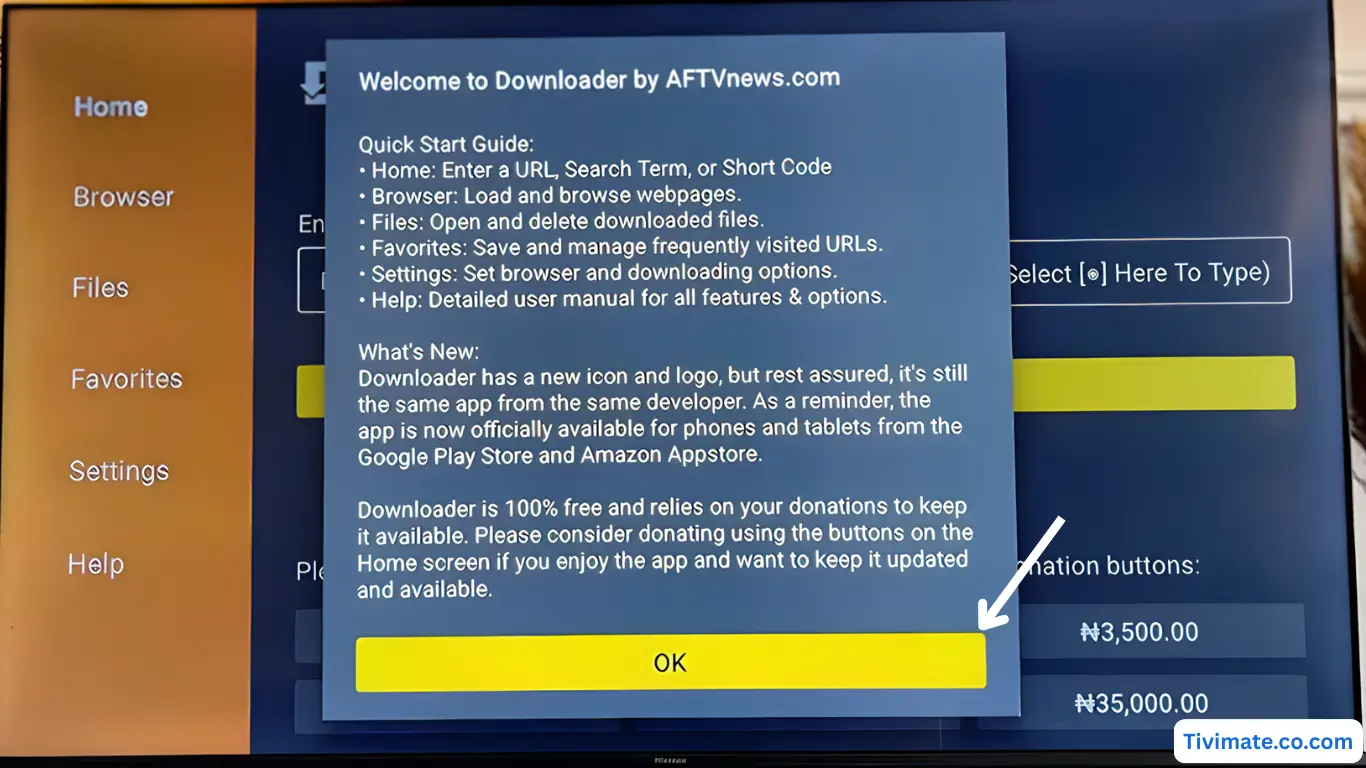
3Dismiss the welcome message by pressing OK.

Step 3

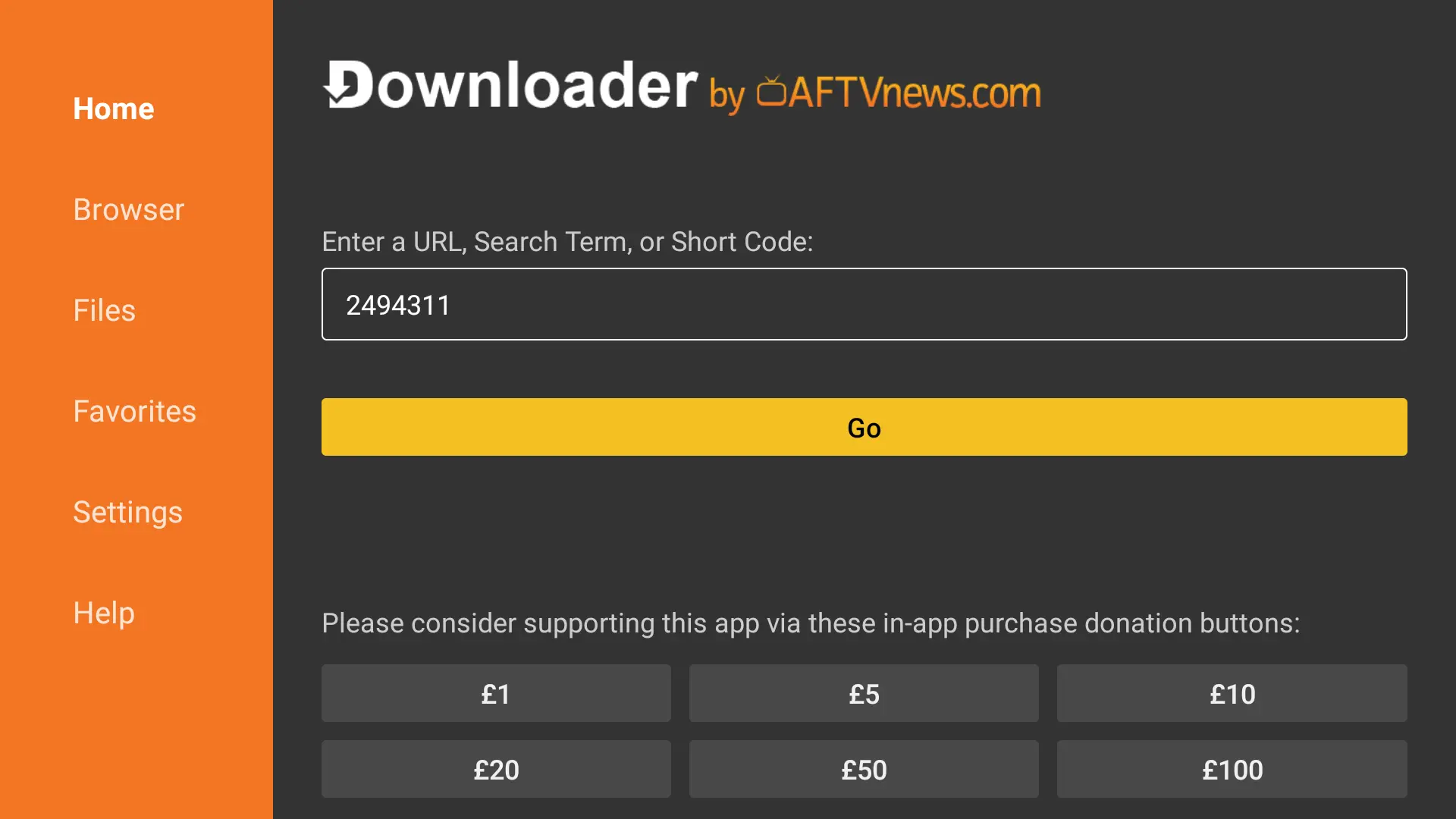
4In the URL field, enter the V12Mate Downloader code: 2494311 — then press GO.

Step 4

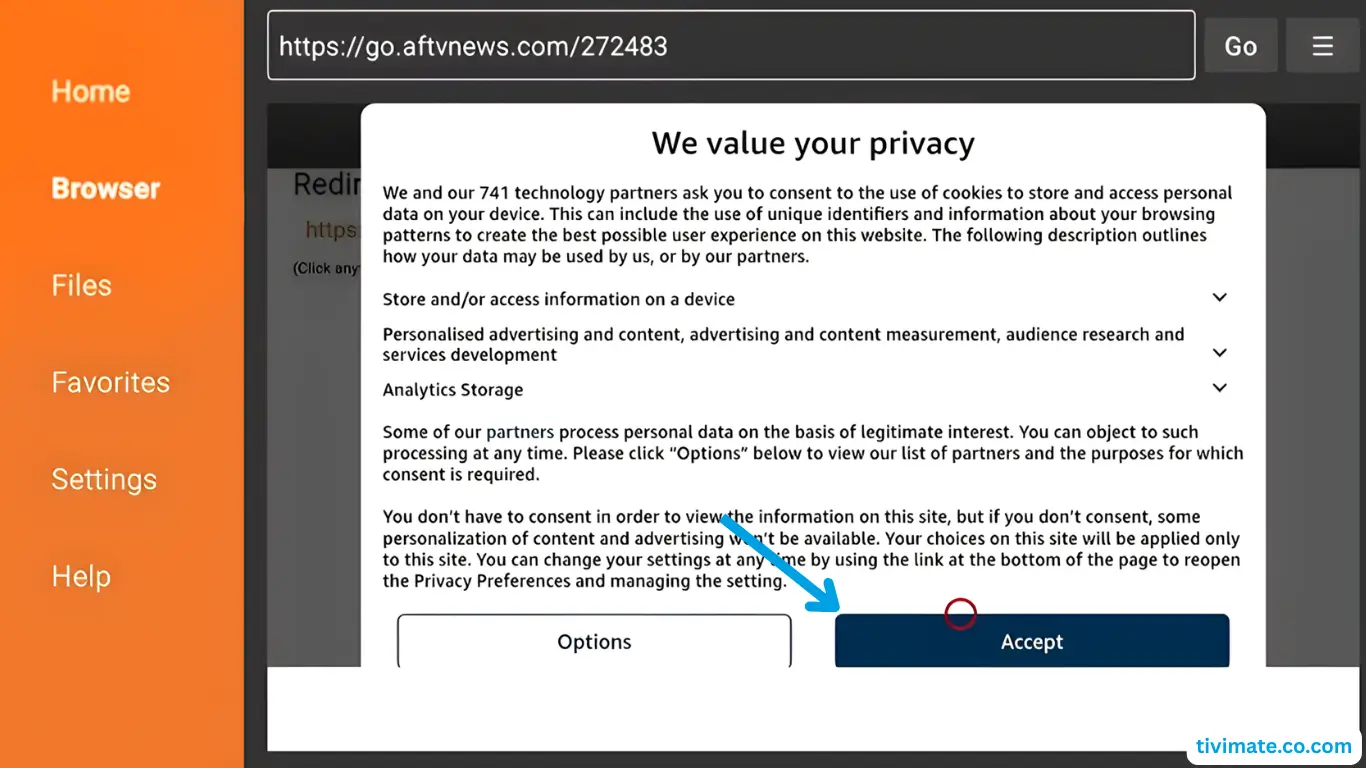
5Accept the Privacy Policy.

Step 5

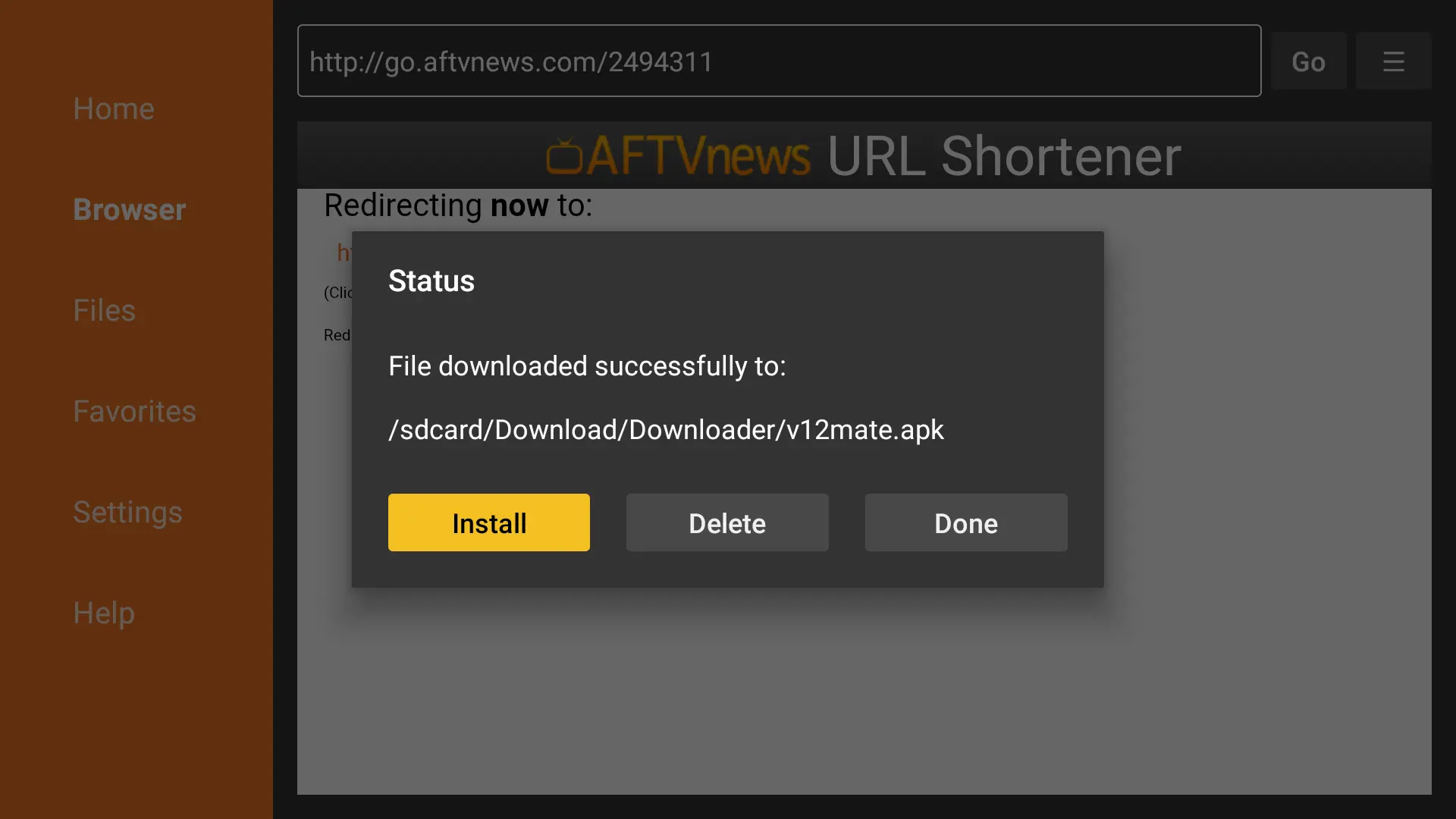
6Press Install.

Step 6

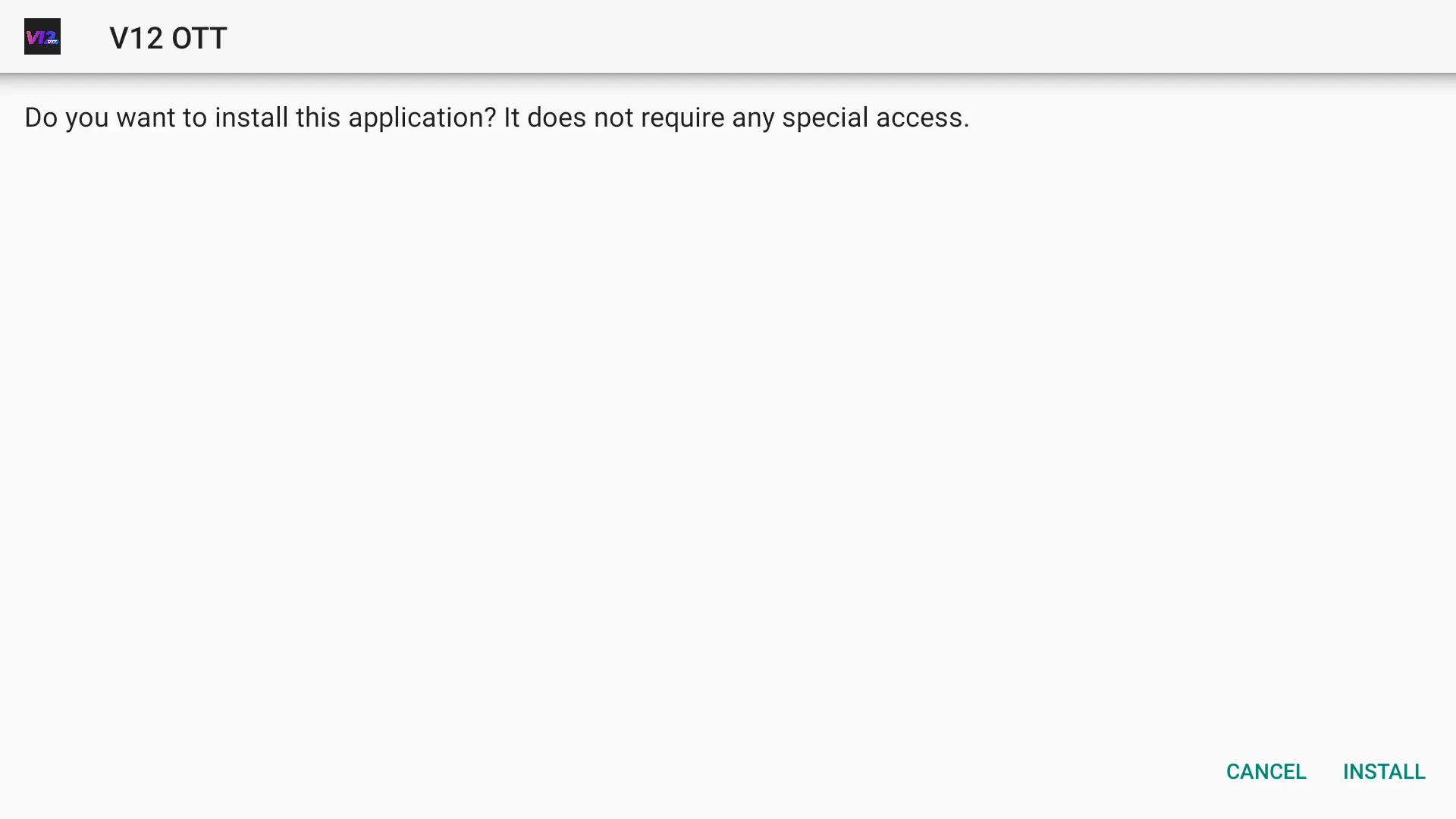
7Confirm Install again if prompted. Wait for the installation to complete.

Step 7

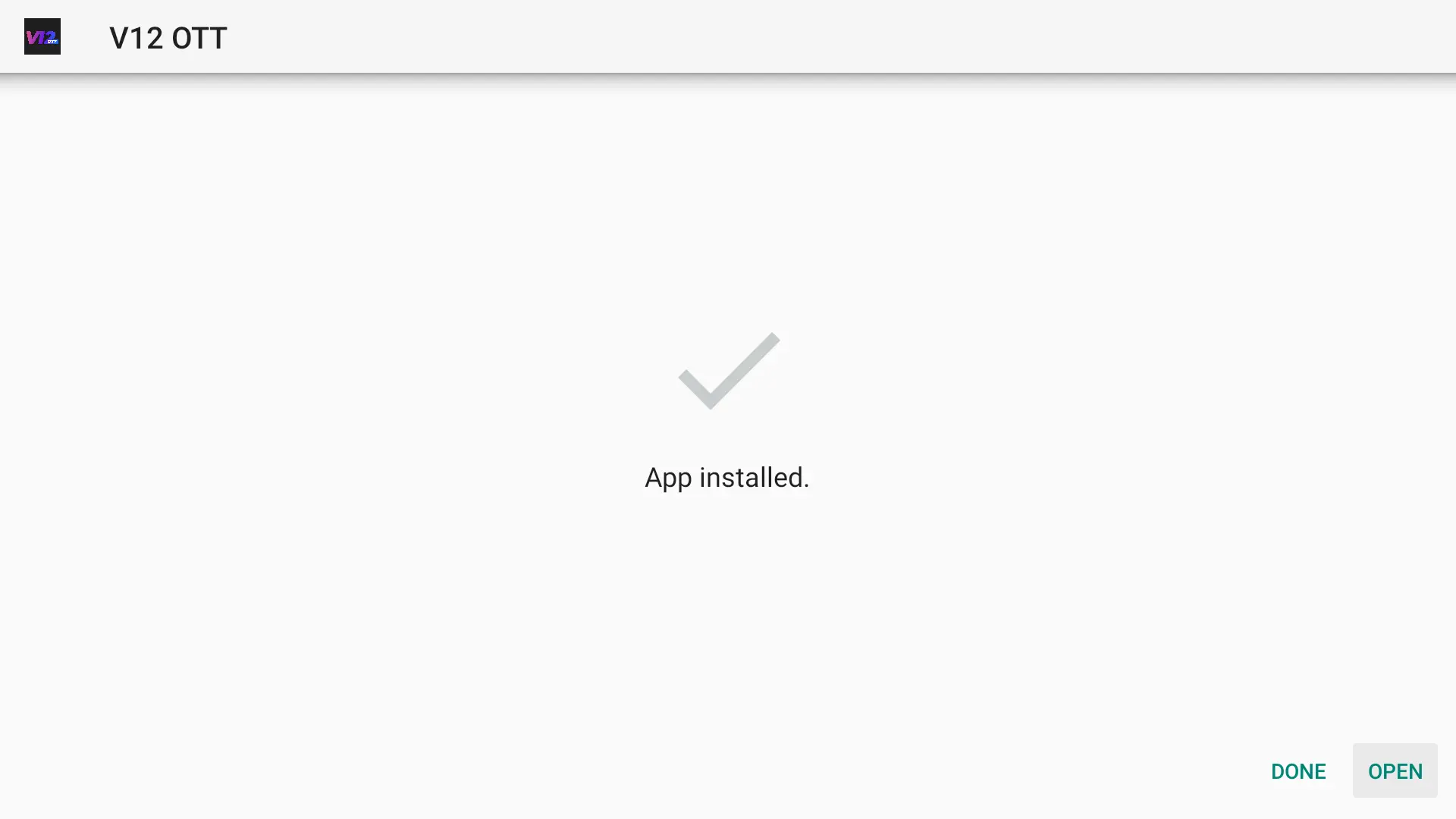
8When complete, press OPEN.

Step 8

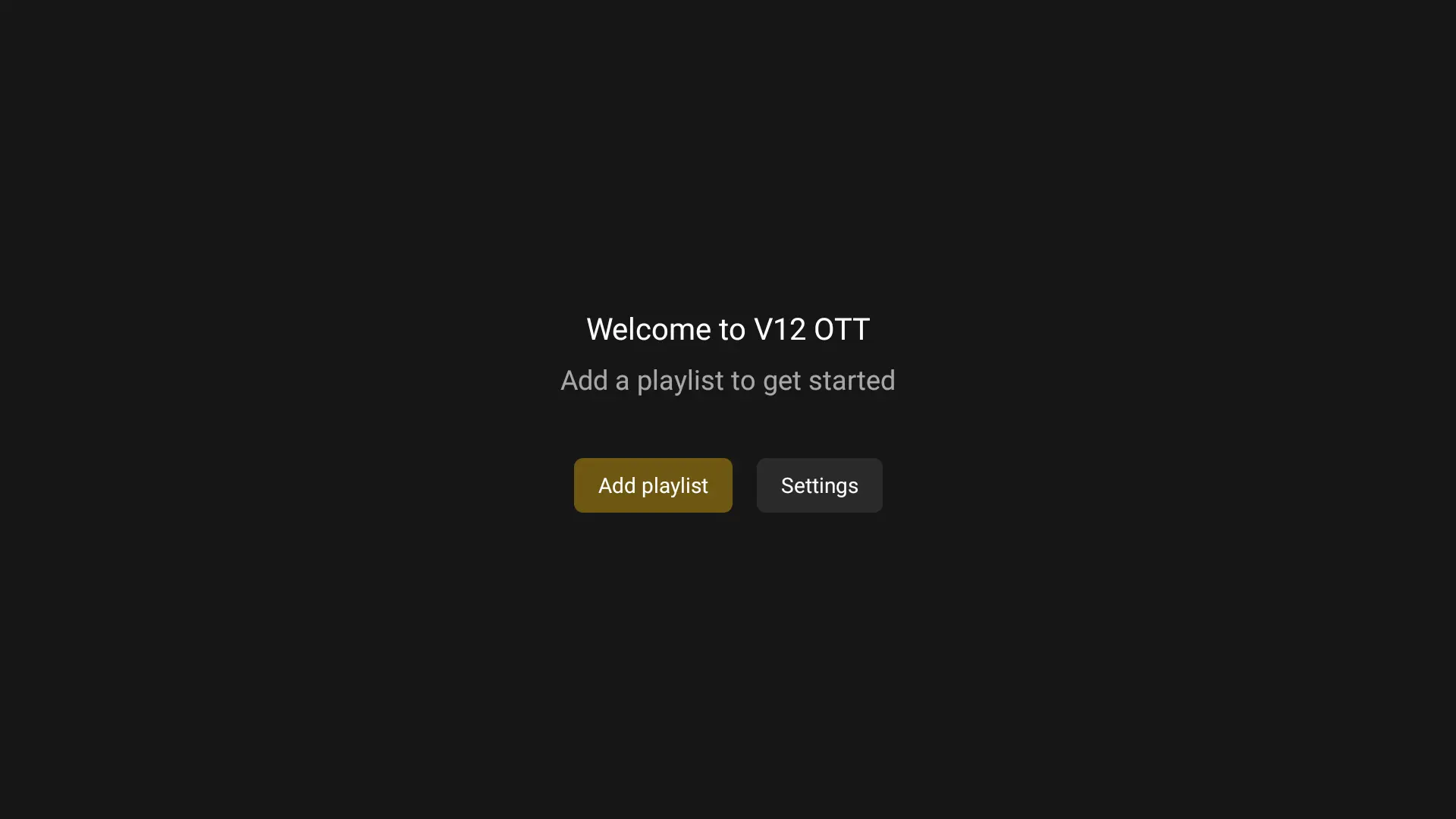
9Press Add Playlist.

Step 9

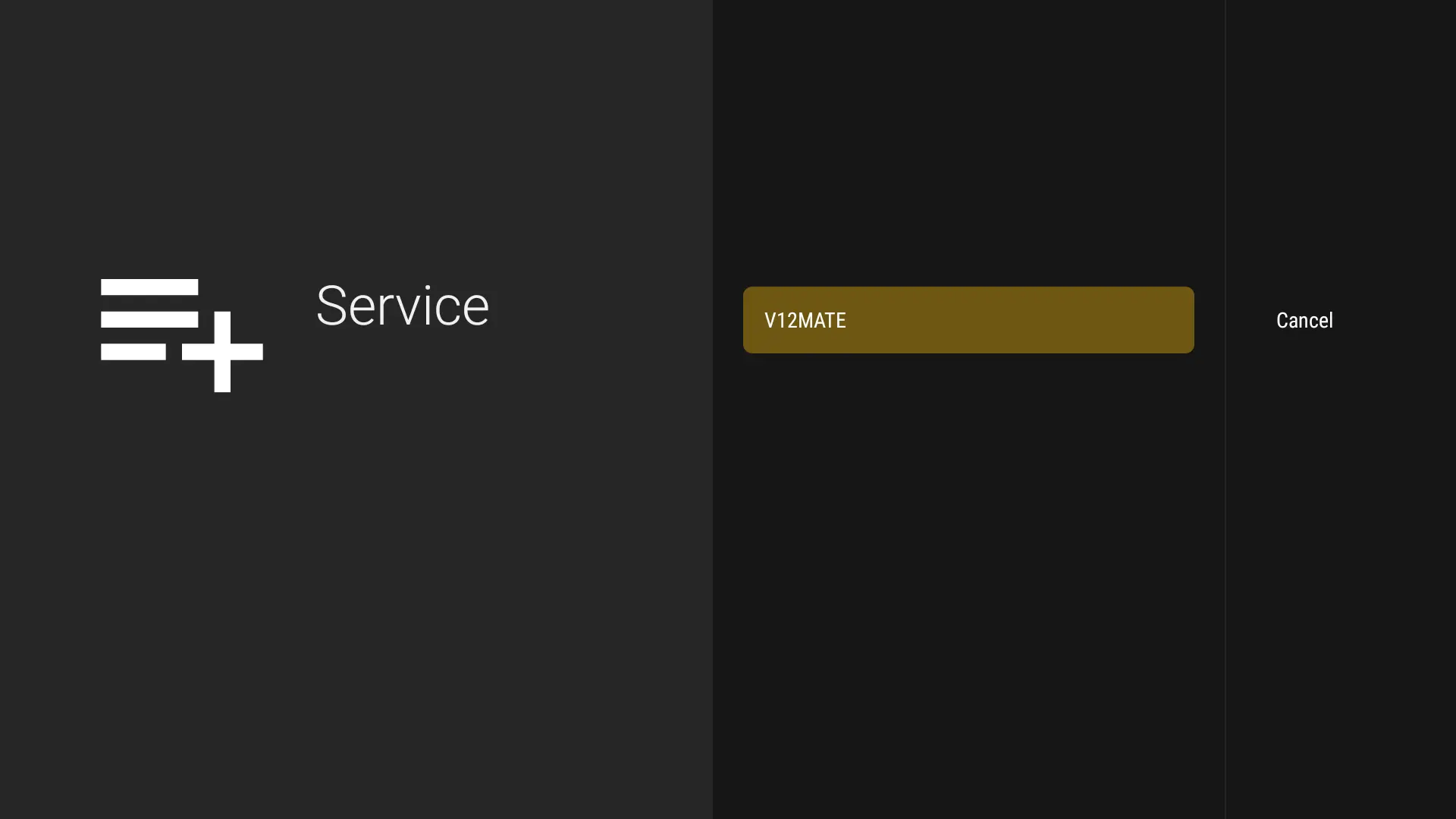
10Select V12MATE as the playlist type.

Step 10

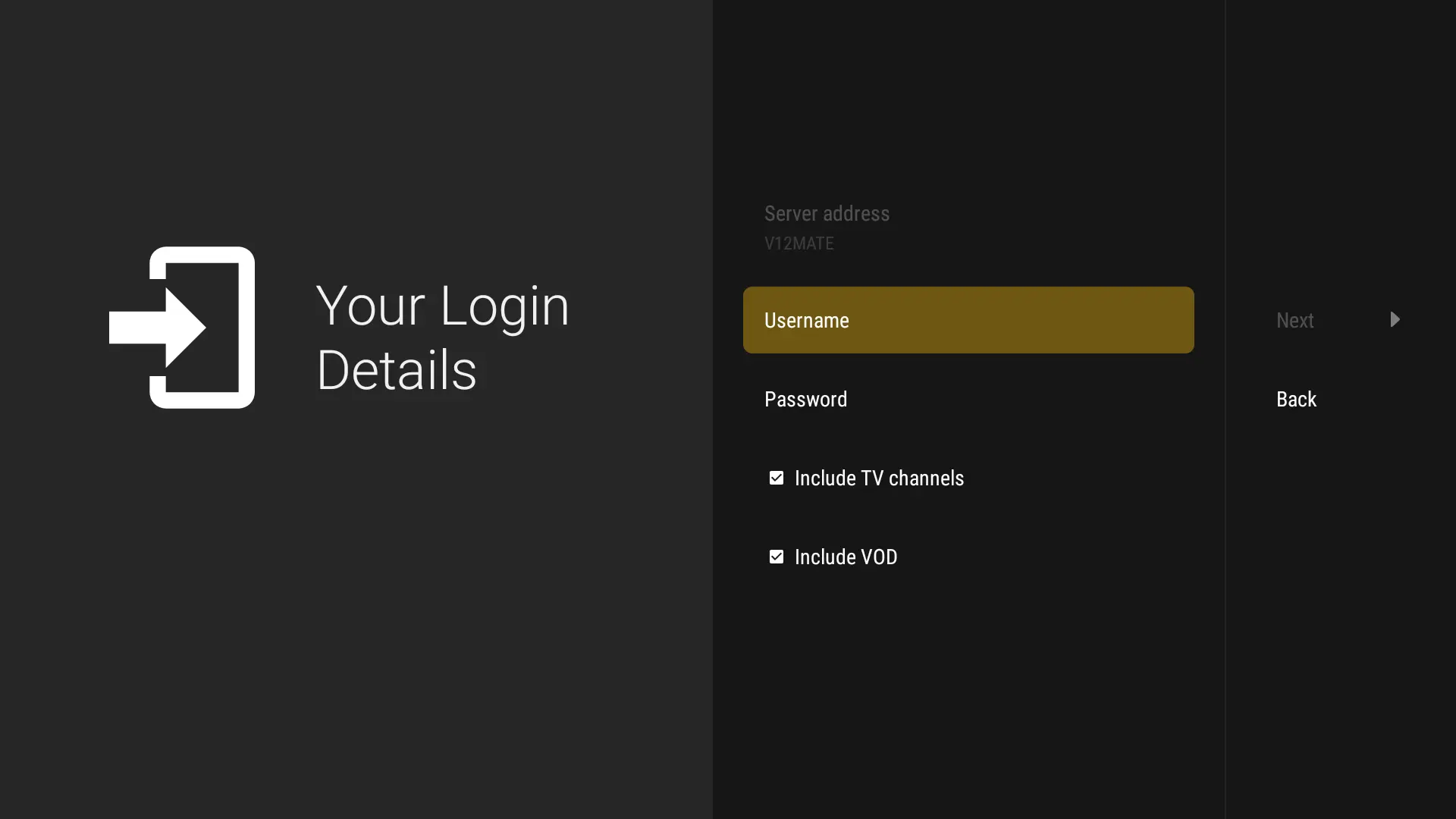
11Enter your Credentials (Username & Password from your welcome email). No server address needed.

Step 11

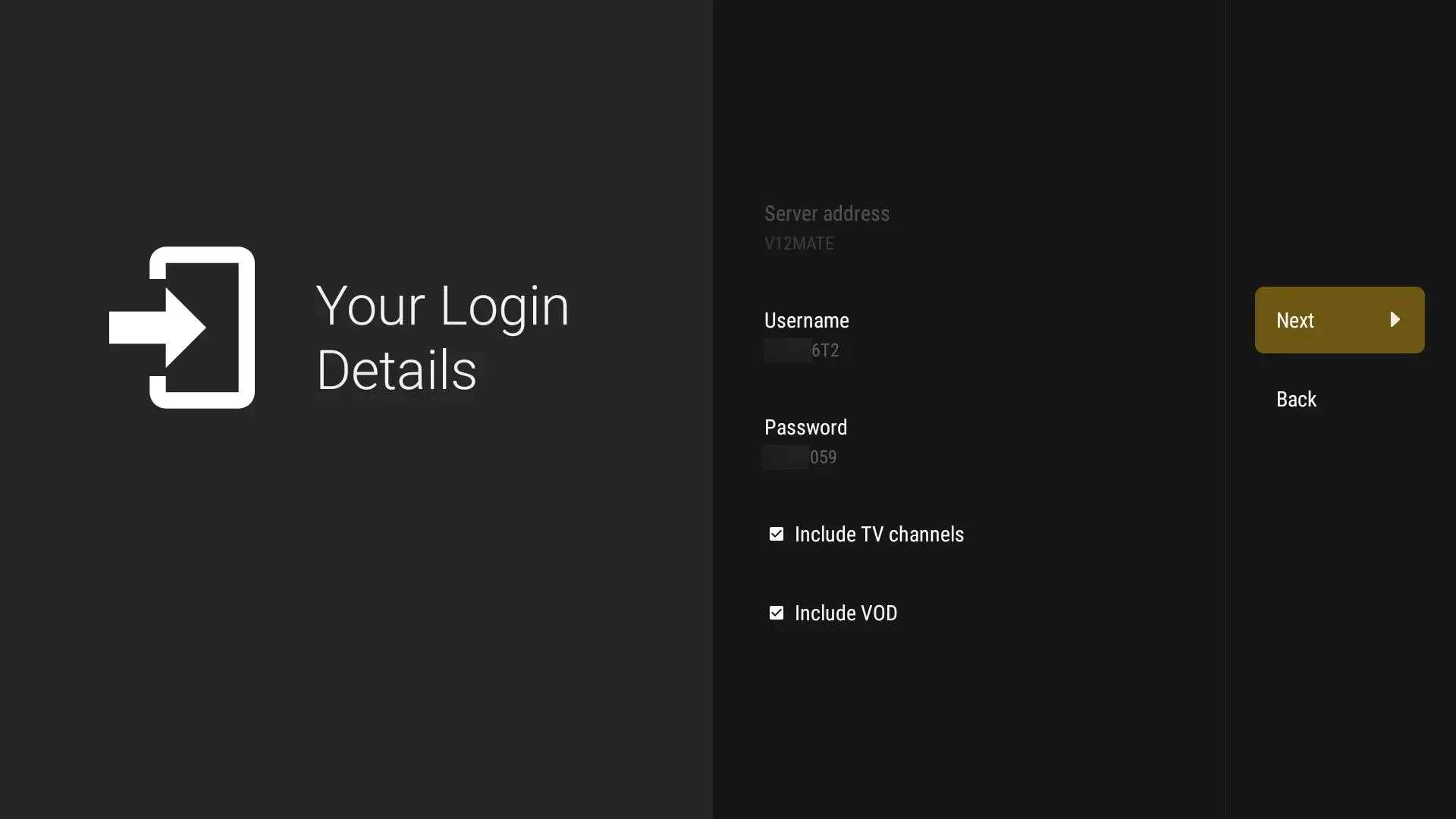
12Press Next. Keep VOD and TV Channels selected.

Step 12

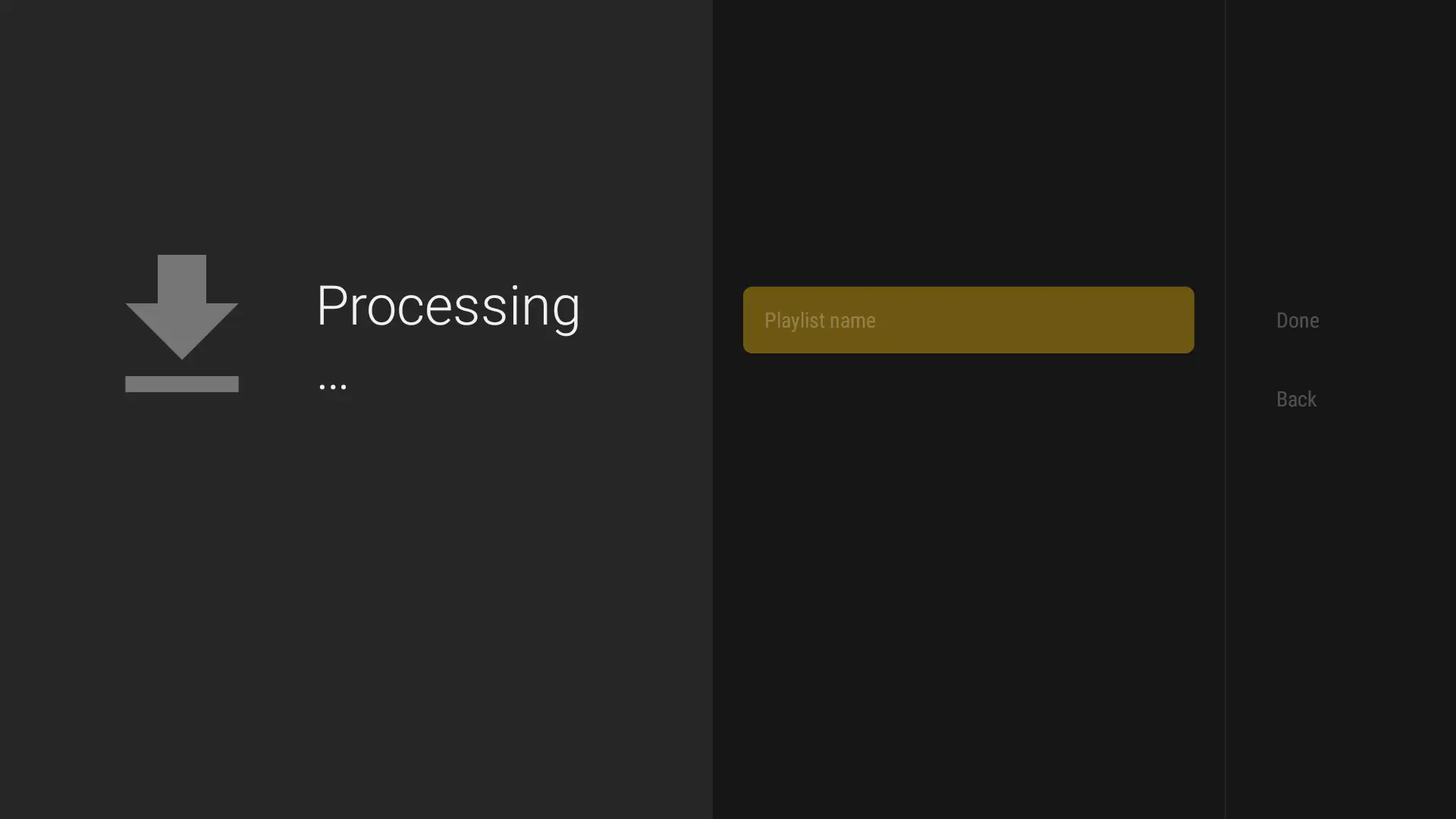
13Wait about 1 minute for channels to load, then press Done. You’re ready to watch! 🎉

Step 13

â„šī¸ If no channels load, go to Settings → Playlists → V12Mate → Xtream Codes Parameters to re-enter your login details. EPG data loads in the background — check it under Settings → EPG.

Frequently Asked Questions
❓ What is V12Mate, and how does it work on Firestick?
V12Mate is a free IPTV player app compatible with Firestick. It connects to your subscription using your username and password and streams live TV, movies, and series directly to your TV.
❓ Is V12Mate compatible with all Firestick models?
Yes, V12Mate works on all Firestick models including Firestick 4K, Firestick 4K Max, Fire TV Cube, and Fire TV Stick Lite.
❓ How do I add IPTV services to V12Mate?
Open V12Mate → Add Playlist → V12MATE → enter your username and password from your welcome email. No server URL is needed for V12Mate login.
❓ No content showing on V12Mate — what should I do?
Double-check your username and password (they are case-sensitive). If still failing, go to Settings → Playlists → V12Mate → Xtream Codes Parameters and re-enter your credentials.
đŸ‘Ŋ

Android TV / Box Setup Guide

âąī¸Time Required:3-5 minutes
📱Player:V12Mate Player
✅Difficulty:Easy setup

Compatible with: Sony, TCL, Hisense, Philips, Nvidia Shield, Chromecast with Google TV, Mi Box, and most Android TV boxes.
Compatible players: V12MatePerfect PlayerTiviMate
Method 1
Using Downloader App (Recommended)
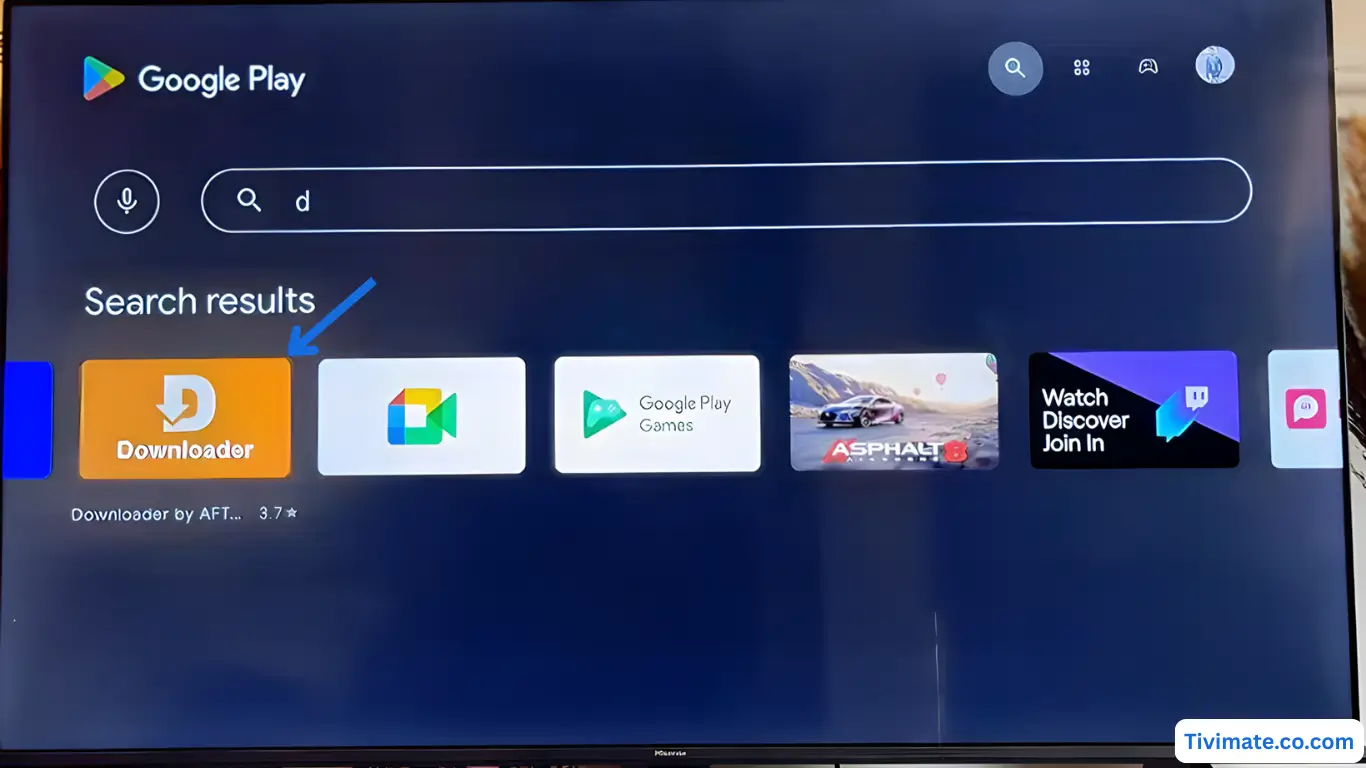
1Search for Downloader in the Play Store and tap Install.
Step 1
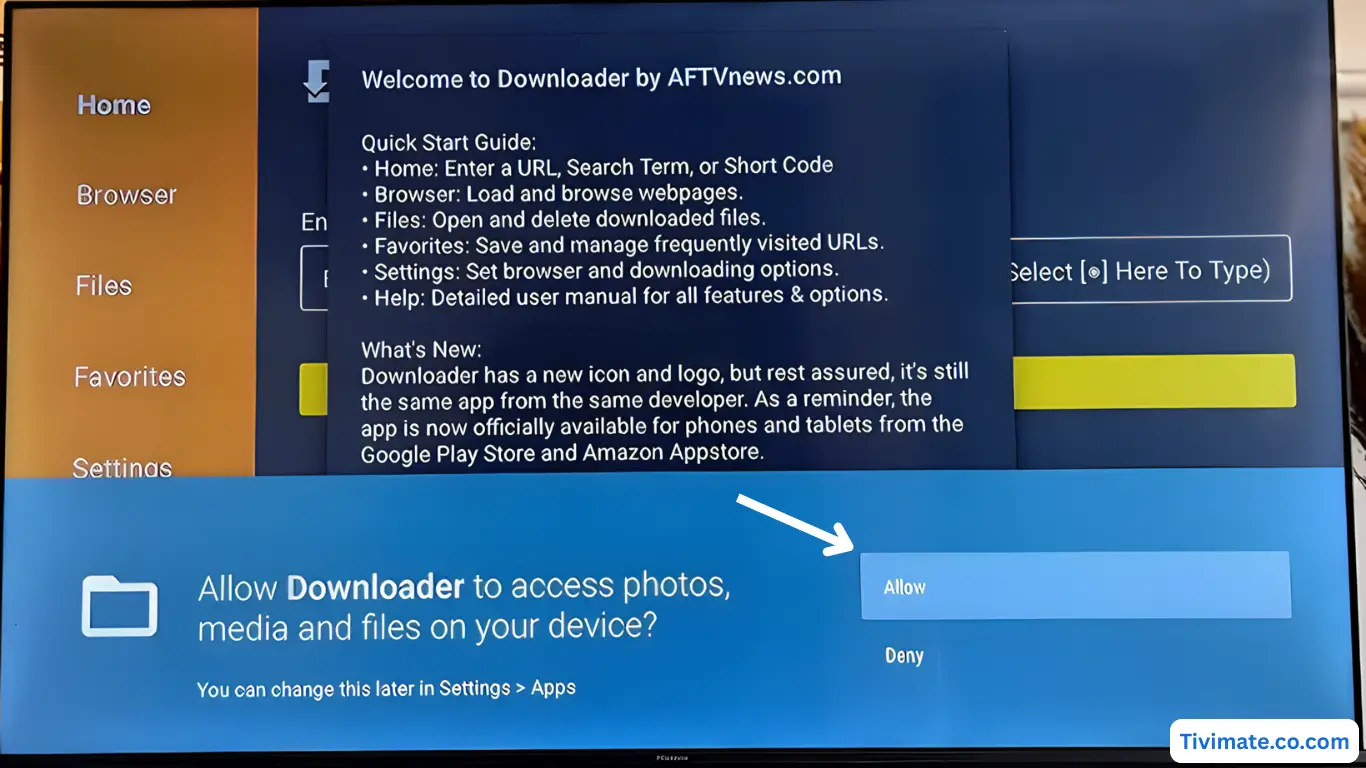
2Press Allow when prompted for file access.
Step 2
3Click OK to confirm and proceed.
Step 3
4Downloader is ready. Now enter the V12Mate code to install it.
Step 4
5In the URL field enter: 2494311 — then press GO.
Step 5
6Accept the Privacy Policy.
Step 6
7Press Install and wait for V12Mate to install.
Step 7
8When complete, press OPEN.
Step 8
9Press Add Playlist.
Step 9
10Select V12MATE.
Step 10
11Enter your Username and Password. No server URL needed.
Step 11
12Press Next, keep VOD and TV Channels selected.
Step 12
13Wait ~1 minute for channels to load, then press Done. 🎉
Step 13
Method 2
Google Play Store — TiviMate (Alternative)

Note: VOD on TiviMate only works with their Premium plan. Our subscription already includes VOD built in.
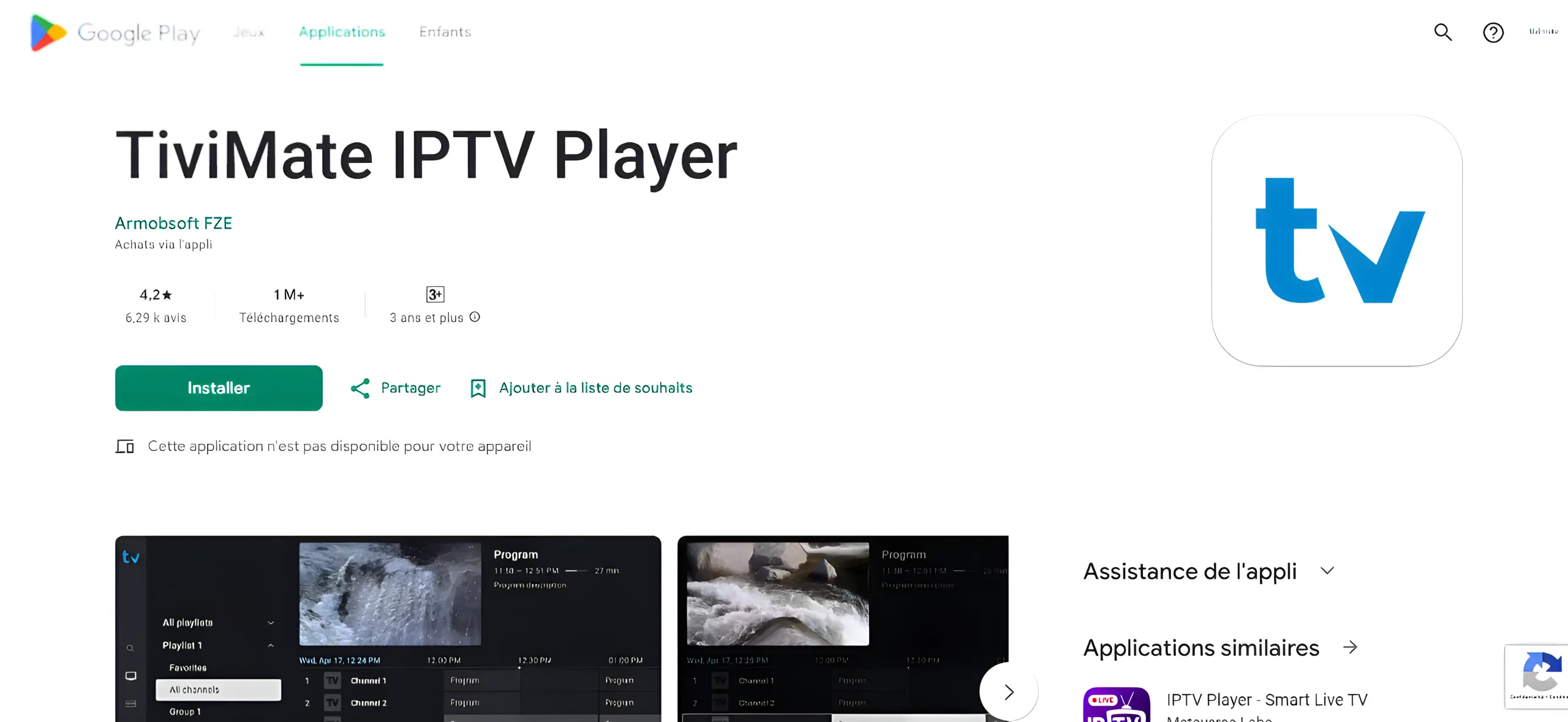
1Open Google Play Store on your Android TV.
Step 1
2Search for TiviMate IPTV Player and click Install.
3Open TiviMate, select Add Playlist, then choose Xtream Codes.
4Enter your credentials: Server URL, Username, and Password from your welcome email. Tap Next to load channels.
Frequently Asked Questions
❓ What is V12Mate and how does it work?
V12Mate is a free IPTV player that connects to your subscription using your credentials and streams content directly to your Android TV or box.
❓ Is V12Mate compatible with my Android TV device?
Yes, V12Mate works with most Android TV devices including Sony, TCL, Hisense, Nvidia Shield, Mi Box, Chromecast with Google TV, and all Android TV boxes running Android 5.0+.
❓ Do I need TiviMate Premium?
Not for our service. Our subscription includes VOD built in. TiviMate Premium is only needed if you want TiviMate’s own premium features (like multi-screen). V12Mate is completely free and works out of the box.
❓ Can I use V12Mate with any IPTV provider?
Yes. V12Mate supports Xtream Codes API which is the most widely used IPTV protocol. It works with any IPTV provider that uses this standard.

🍎

iPhone & iPad Setup Guide

âąī¸Time Required:3 minutes
📱Player:App Store
✅Difficulty:No jailbreak required
Compatible players: iMPlayerSmarters Player Lite

â„šī¸ These are third-party apps and are NOT owned, sold, or managed by us. Some may require purchasing their own license to unlock all features. This guide is provided to help you connect your subscription.

Method 1
iMPlayer — Recommended

Download iMPlayer from the App Store: Download Link

1Download iMPlayer – IPTV Player from the App Store and open it.

Step 1

2Tap “Add a Playlist”.
3Select playlist type “XC API”.
4Fill in your details:
â€ĸ Playlist Name: Any name
â€ĸ Portal URL: Server URL from your welcome email
â€ĸ Username & Password: From your welcome email
5Tap “Add Playlist”. Wait for the content to download — then enjoy streaming! 🎉
Method 2
Smarters Player Lite

Download Smarters from the App Store: Download Link
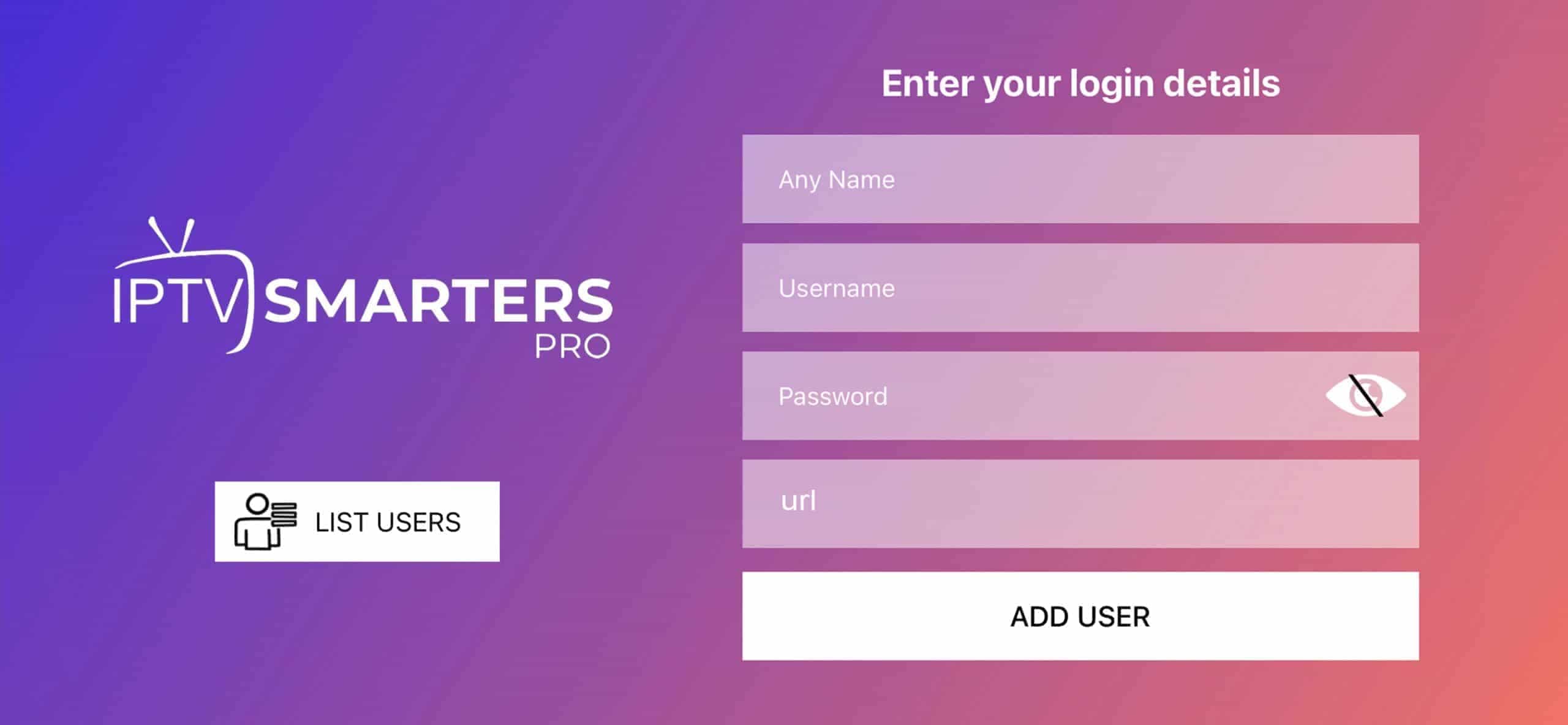
1Open the app and tap Add User, then select Login with Xtream Codes API.

Step 1

2Enter your login details (Server URL, Username, Password from your welcome email) and tap ADD USER.

Step 2

3Wait for the app to process and load your channel list.
4Tap the Live TV icon to start watching.
5Select a channel category, then tap any channel name to start streaming.

💡 Tip: For best performance on iOS, ensure you are connected to a stable WiFi network. Cellular data may cause buffering on HD/4K streams.

Frequently Asked Questions
❓ Which app is best for iOS?
We recommend iMPlayer as it is free, simple to set up, and works well with our Xtream Codes subscription. Smarters Player Lite is a solid alternative.
❓ Do I need to jailbreak my iPhone or iPad?
No. Both iMPlayer and Smarters Player Lite are available directly in the official App Store. No jailbreak is required.
❓ Can I use these apps on Apple TV?
iMPlayer and Smarters Player Lite are primarily designed for iPhone and iPad. For Apple TV, check if the app has a tvOS version in the App Store.
❓ Why is my EPG (TV guide) not loading?
EPG data loads in the background and may take a few minutes. If it still does not appear after 5 minutes, try closing and reopening the app.

đŸ’ģ

Windows & Mac Setup Guide

âąī¸Time Required:5 minutes
📱Player:Desktop App
✅Difficulty:Full HD support
Compatible players: IPTV Smarters ProMyIPTV PlayerVLC Player
Method 1
IPTV Smarters Pro — Recommended
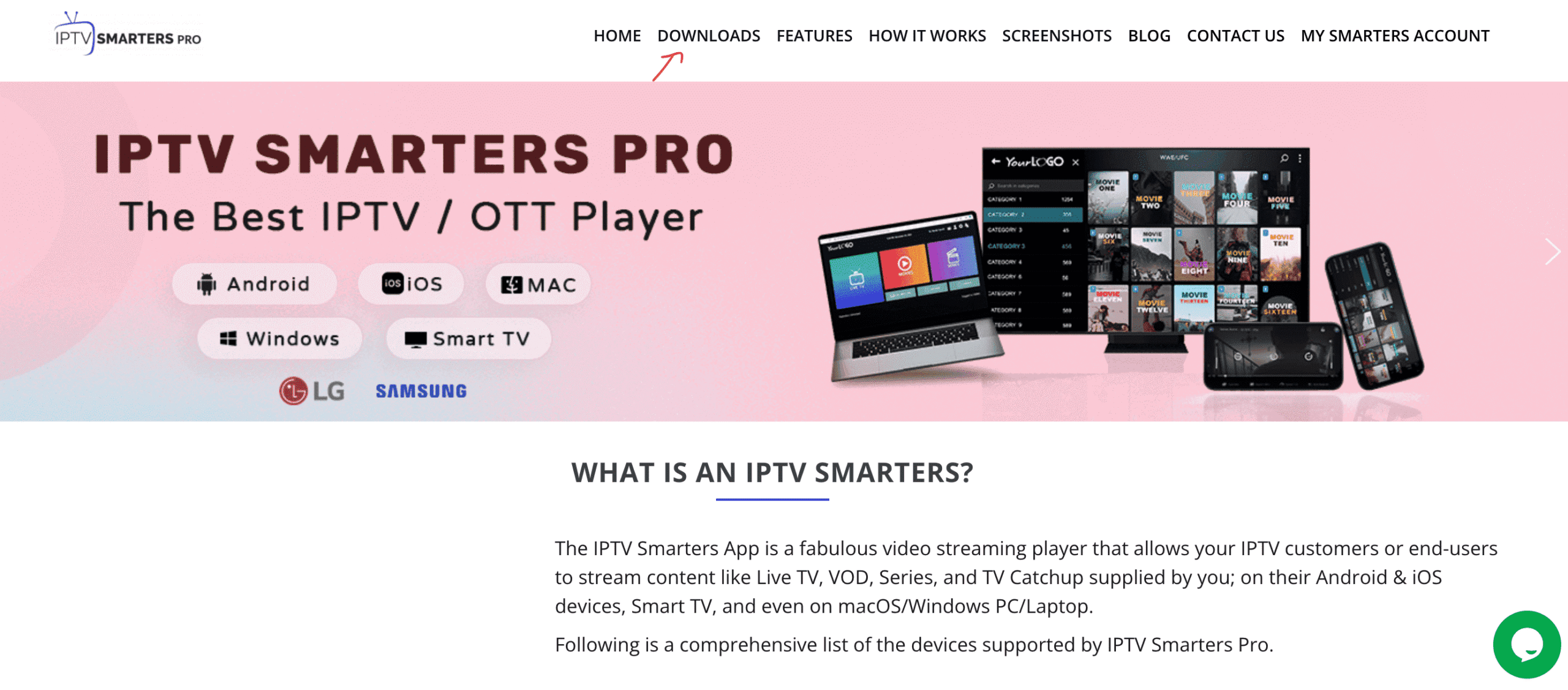
1Open your browser and search for “IPTV Smarters Pro”.

Step 1

2Go to www.iptvsmarters.com and click Downloads in the menu.
3Download the Windows or Mac version.
4Open the downloaded installer file.
5Click “Yes” when Windows asks for permission to install.
6Wait for the installation to complete (usually under 2 minutes).
7Launch IPTV Smarters. Click Add New User, then “Login with Xtream Codes API”.
8Enter your details: Username, Password, and Portal URL from your welcome email. Click Next.
9Wait for your channel list to load — then start streaming! 🎉
Method 2
MyIPTV Player — Windows 10/11

Available from the Microsoft Store.

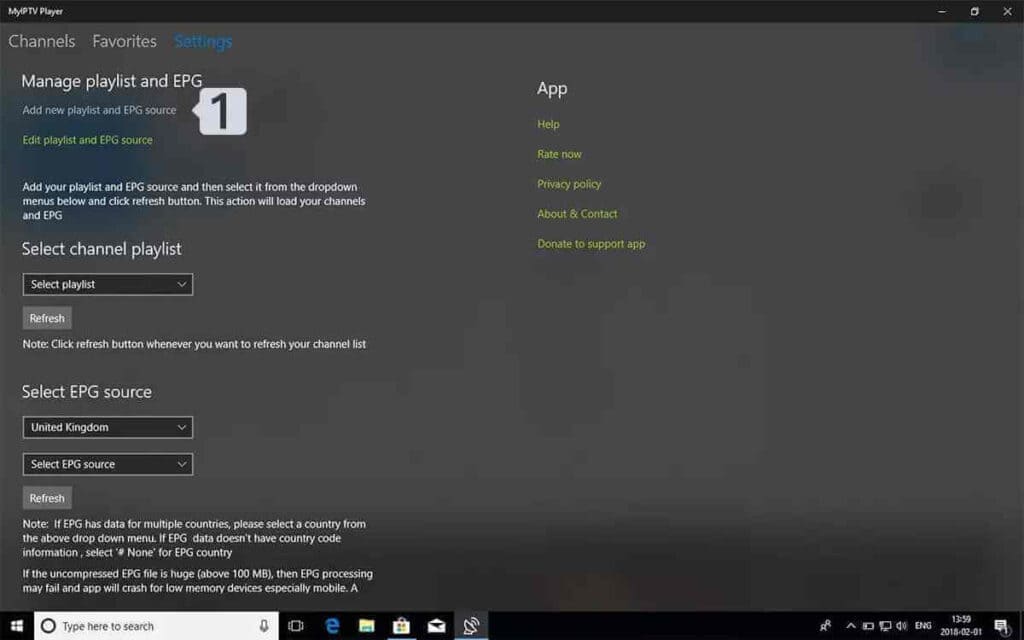
1Open MyIPTV Player. Go to the Settings tab and click “Add new playlist and EPG source”.

Step 1

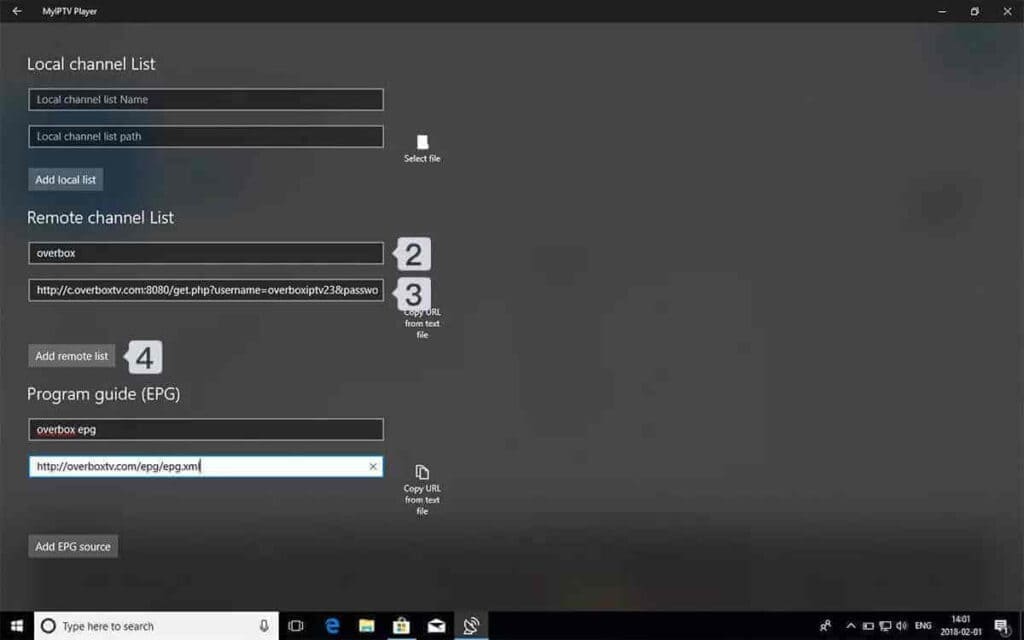
2Add your M3U playlist:
â€ĸ Name: Any label (e.g. “My IPTV”)
â€ĸ URL: Your M3U link from your welcome email
Click Add remote list.
Step 2

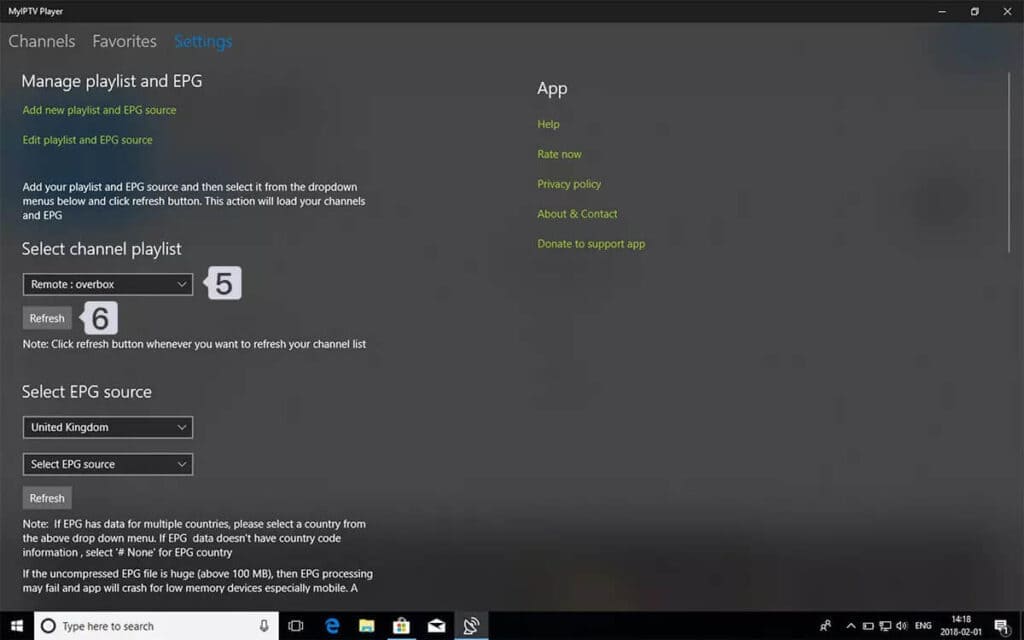
3Return to Settings and choose your playlist from the Select Channel Playlist dropdown.

Step 3

4Go to the Channels tab, choose your country/category, and start watching!

Step 4

💡 Tip: For best performance on PC or Mac, use a wired Ethernet connection when possible. WiFi may cause buffering during HD or 4K streams.

Frequently Asked Questions
❓ Which app works best on Windows or Mac?
IPTV Smarters Pro is our top recommendation — it is feature-rich, supports Xtream Codes, and has versions for both Windows and Mac. MyIPTV Player is a great lightweight alternative for Windows 10/11.
❓ Can I use VLC Player for IPTV?
Yes, VLC can play IPTV using an M3U playlist URL. Go to Media → Open Network Stream → paste your M3U URL. However, it lacks EPG and a proper channel guide, so we recommend Smarters or MyIPTV for a better experience.
❓ What are the system requirements?
IPTV Smarters Pro requires Windows 7 or later / macOS 10.12+, at least 4GB RAM, and a stable internet connection of 15 Mbps+ for HD.
❓ Can I record shows on PC or Mac?
TiviMate Premium and some versions of IPTV Smarters Pro support recording. VLC also has a built-in recording feature. Check the specific app’s documentation for how to enable it

📱

Android Phone & Tablet Setup Guide

âąī¸Time Required:3 minutes
📱Player:Play Store
✅Difficulty:Mobile optimized

Requirements: Android 5.0 or higher, stable WiFi or 4G/5G connection.

Compatible players: iMPlayerTiviMate MobilePerfect Player

â„šī¸ These are third-party apps and are NOT owned, sold, or managed by us. Some may require purchasing their own premium license. This guide helps you connect your subscription.

Method 1
iMPlayer — Recommended

Download from Google Play Store.

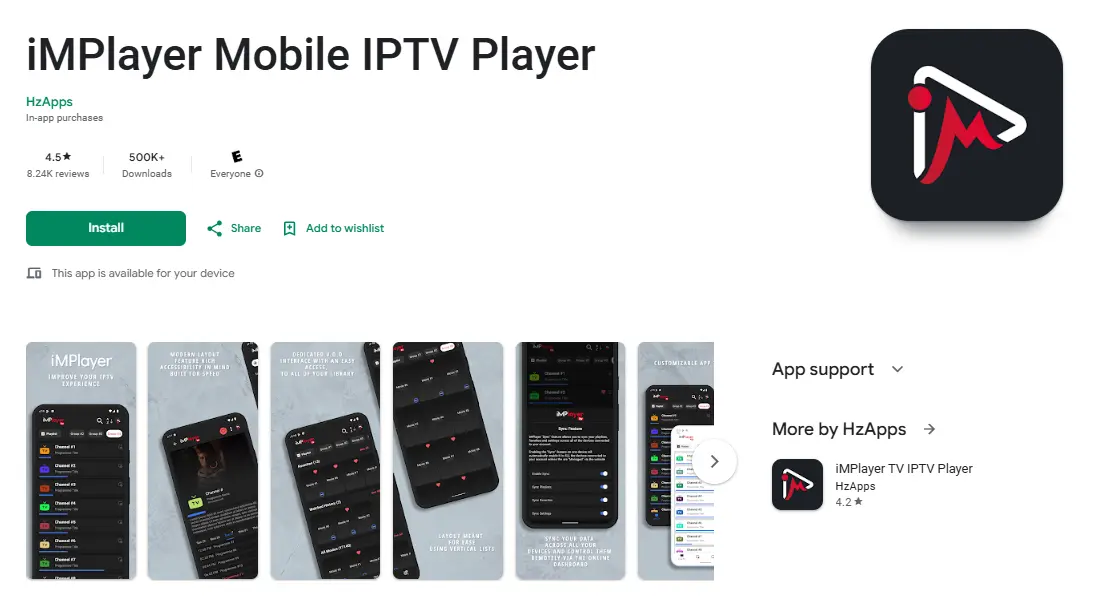
1Download iMPlayer – IPTV Player from Google Play Store and open it.

Step 1

2Tap “Add a Playlist”.
3Select playlist type “XC API”.
4Fill in your details:
â€ĸ Playlist Name: Any name
â€ĸ Portal URL: Server URL from welcome email
â€ĸ Username & Password: From welcome email
5Tap “Add Playlist” and wait for content to download. Enjoy streaming! 🎉
Method 2
TiviMate Mobile — Google Play

Note: VOD on TiviMate only works with their Premium. Our subscription already includes VOD built in.
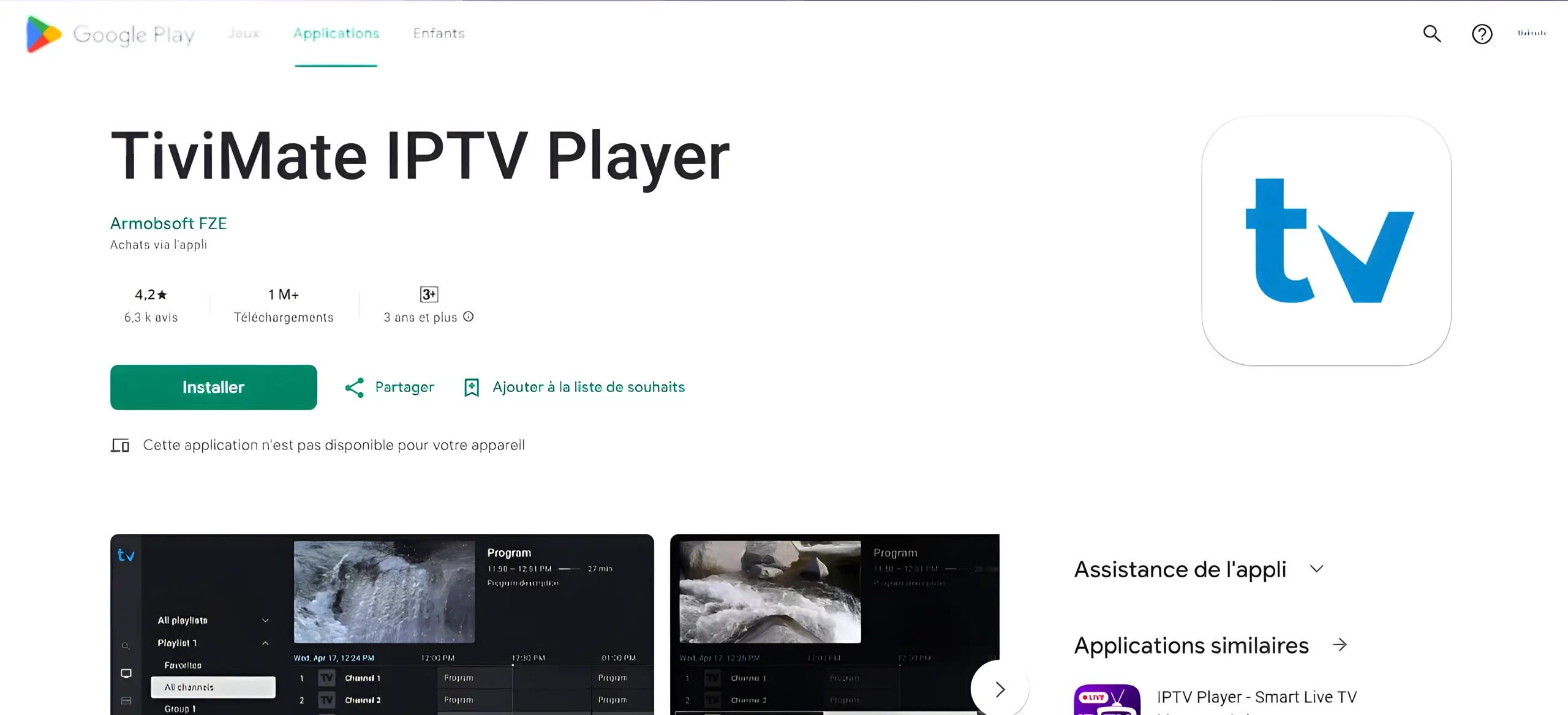
1Open Google Play Store, search TiviMate IPTV Player and tap Install.

Step 1

2Open TiviMate and tap Add Playlist.
3Select Xtream Codes or M3U Playlist.
4Enter your credentials:
â€ĸ Server URL
â€ĸ Username
â€ĸ Password
Tap Next.
5Wait for channels to load — then start watching! 🎉
Method 3
Official APK Installation (Advanced)
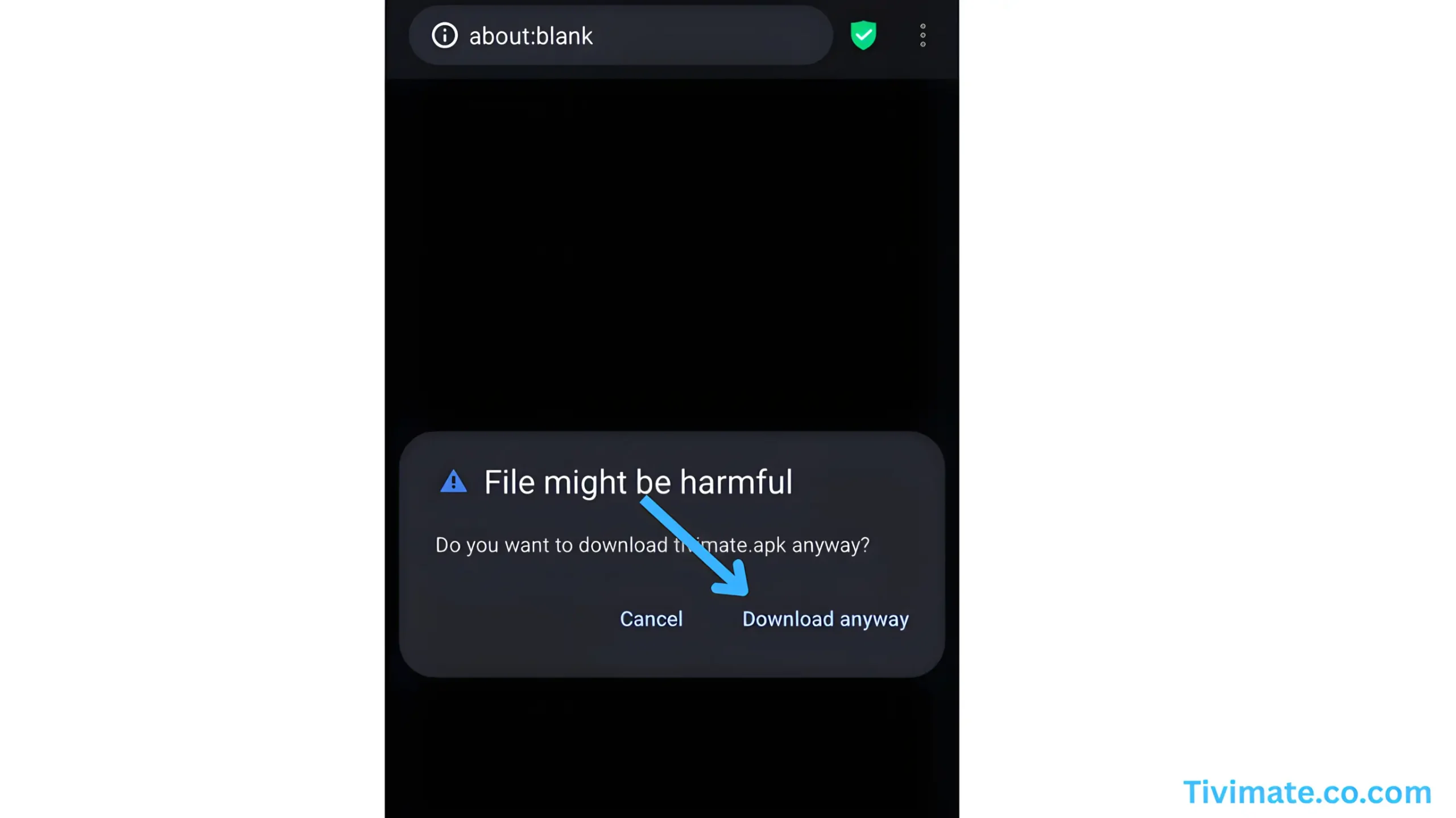
1Visit tivimate.com and download the APK file.

Step 1

2If prompted, allow installs from Unknown Sources in Settings → Security.
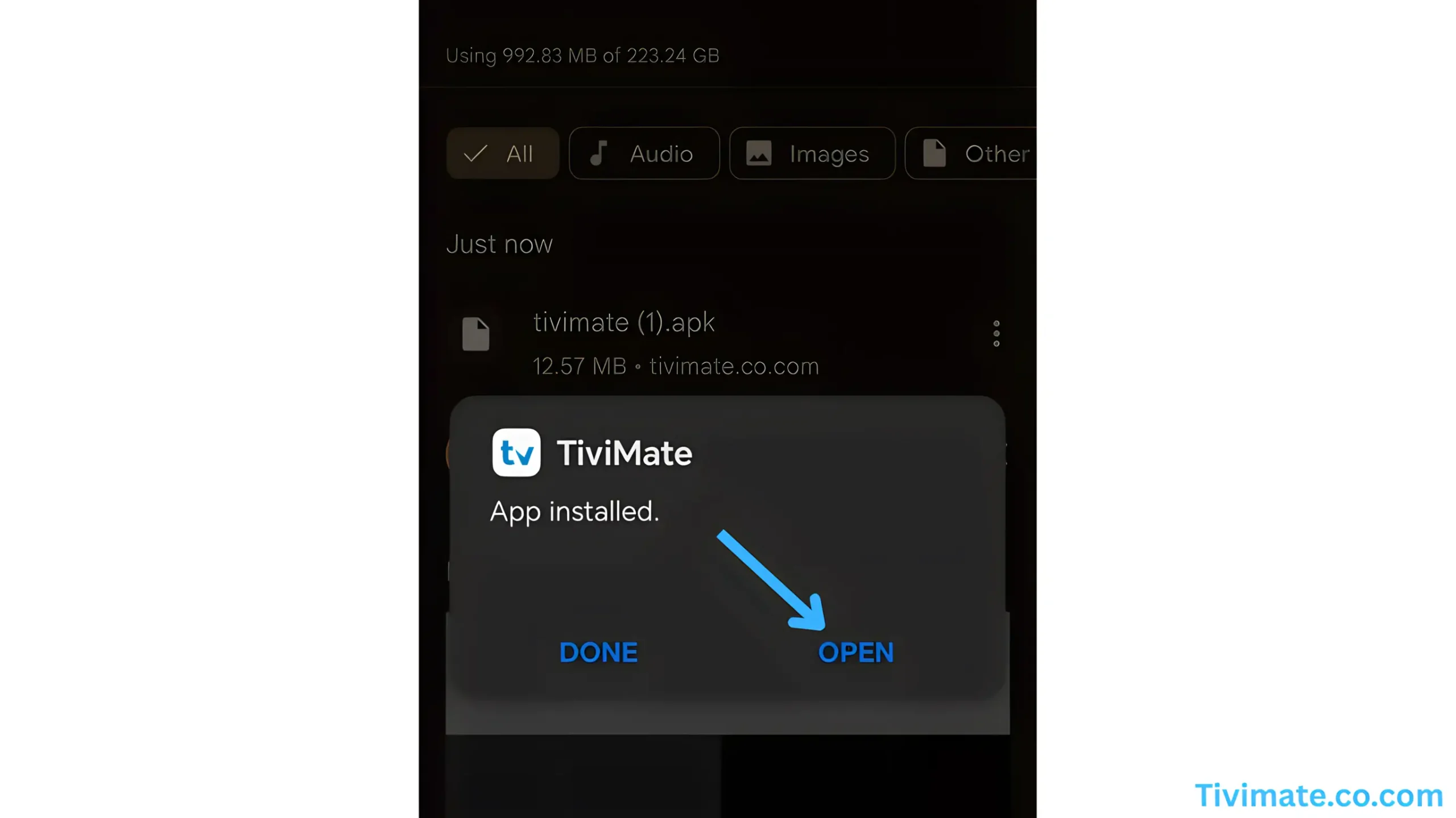
3Open the downloaded APK file to install TiviMate, then launch the app.

Step 3

4Follow the same steps as Method 2 to add your playlist and credentials.

💡 Tip: Use WiFi when possible. Streaming uses approximately 1 GB per hour at standard quality and 3 GB per hour at HD quality.

Frequently Asked Questions
❓ Does TiviMate include channels or an IPTV service?
No. TiviMate is just a player app. You need a separate IPTV subscription (like ours) to provide the channel content.
❓ Why do I see “Invalid” when logging into TiviMate?
This usually means your username or password is incorrect (they are case-sensitive), or your subscription has expired. Double-check your welcome email credentials.
❓ Do I need TiviMate Premium?
Not for our service. Our subscription includes VOD built in. TiviMate Premium is an optional upgrade for TiviMate’s own extra features like multi-screen and recording.
❓ How can I reduce buffering on mobile?
Connect to 5GHz WiFi if possible, close background apps, lower the stream quality in the player settings, and make sure your subscription is active.
❓ Can I cast to my TV from my phone?
Yes — most IPTV apps support Chromecast or screen mirroring. Use the cast icon in the player or enable screen mirroring in your phone’s settings.

đŸŸŖ

Roku Device Setup Guide

âąī¸Time Required:5-7 minutes
📱Player:Hot Player
✅Difficulty:Channel Store

Compatible with: All Roku devices including Roku TV, Roku Ultra, Roku Streaming Stick, and Roku Express.

Compatible players: Hot PlayerPerfect Player

â„šī¸ Hot Player is a third-party app and is NOT owned or managed by us. It may require purchasing their own license after the free trial.
Step 1
Search for Hot Player in the Roku Channel Store
1On your Roku device, open the Roku Channel Store.

Step 1

2In the search bar, type “Hot IPTV” or “Hot Player”.
3Select Hot Player from the results.
4Click “Add Channel” to install it.
Step 2
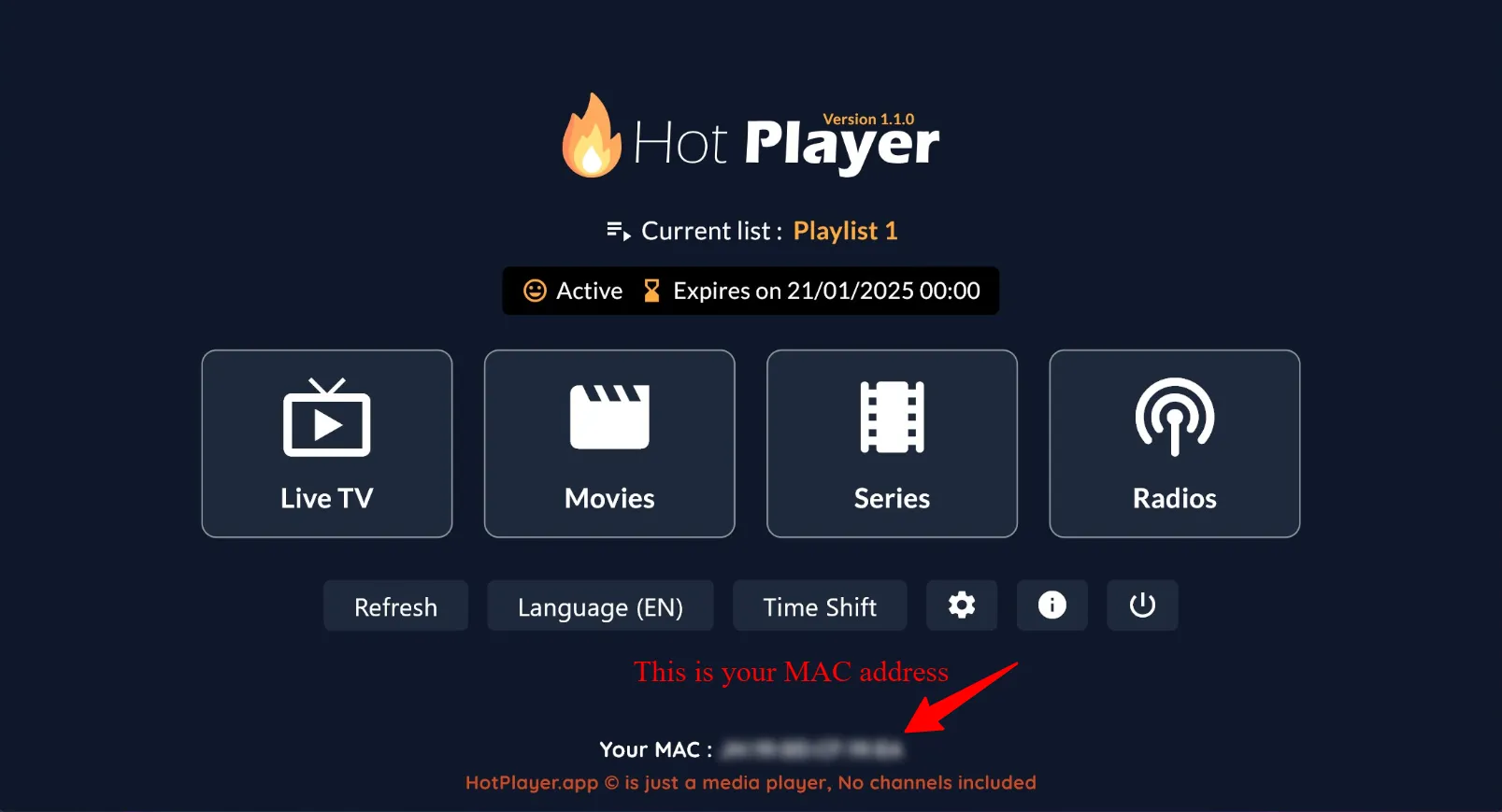
Get Your Device MAC Address
1Open the Hot Player app on your Roku device.

Step 1

2Your MAC Address will be displayed on screen. Write it down or take a photo — you will need it in the next step.
Step 3
Configure Your Playlist Online
1On your phone or computer, visit hotplayer.app.

Step 1

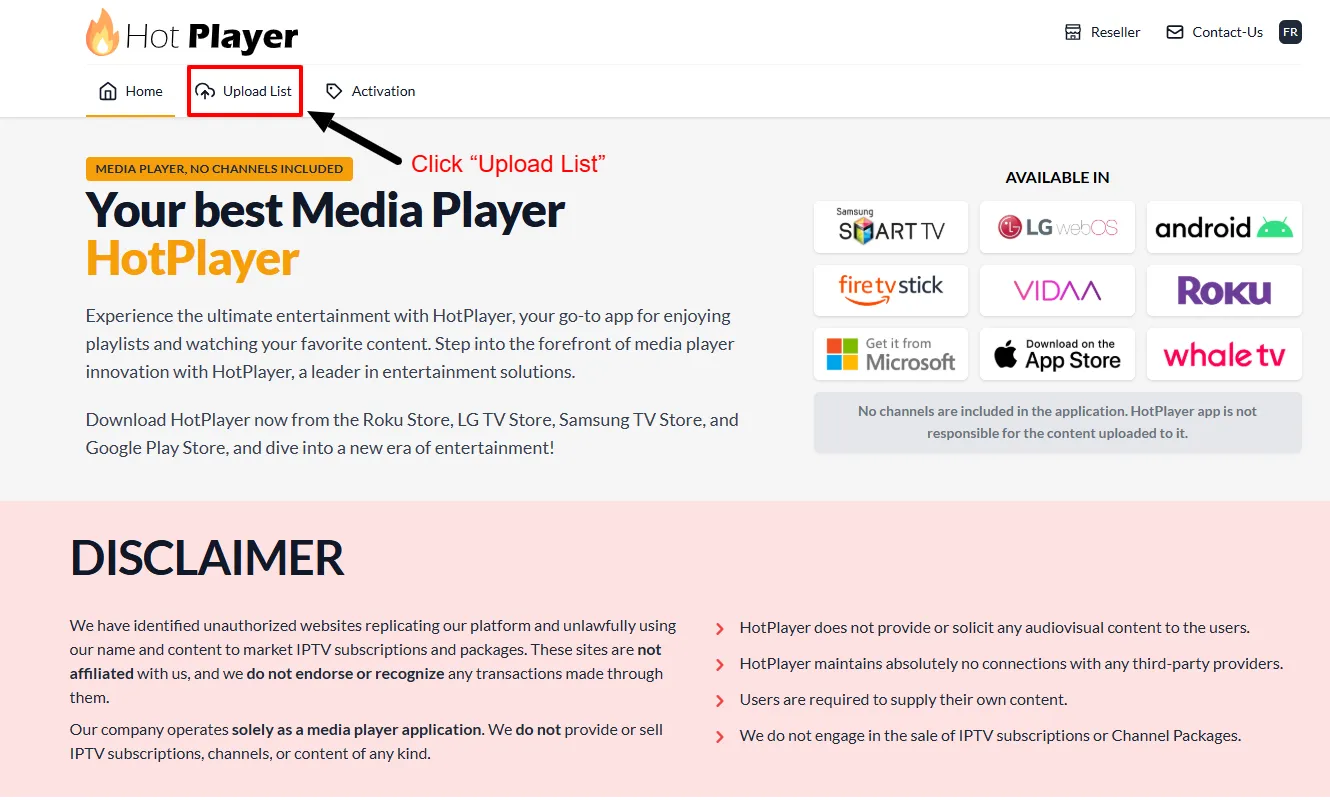
2Click “Upload List” in the menu.

Step 2

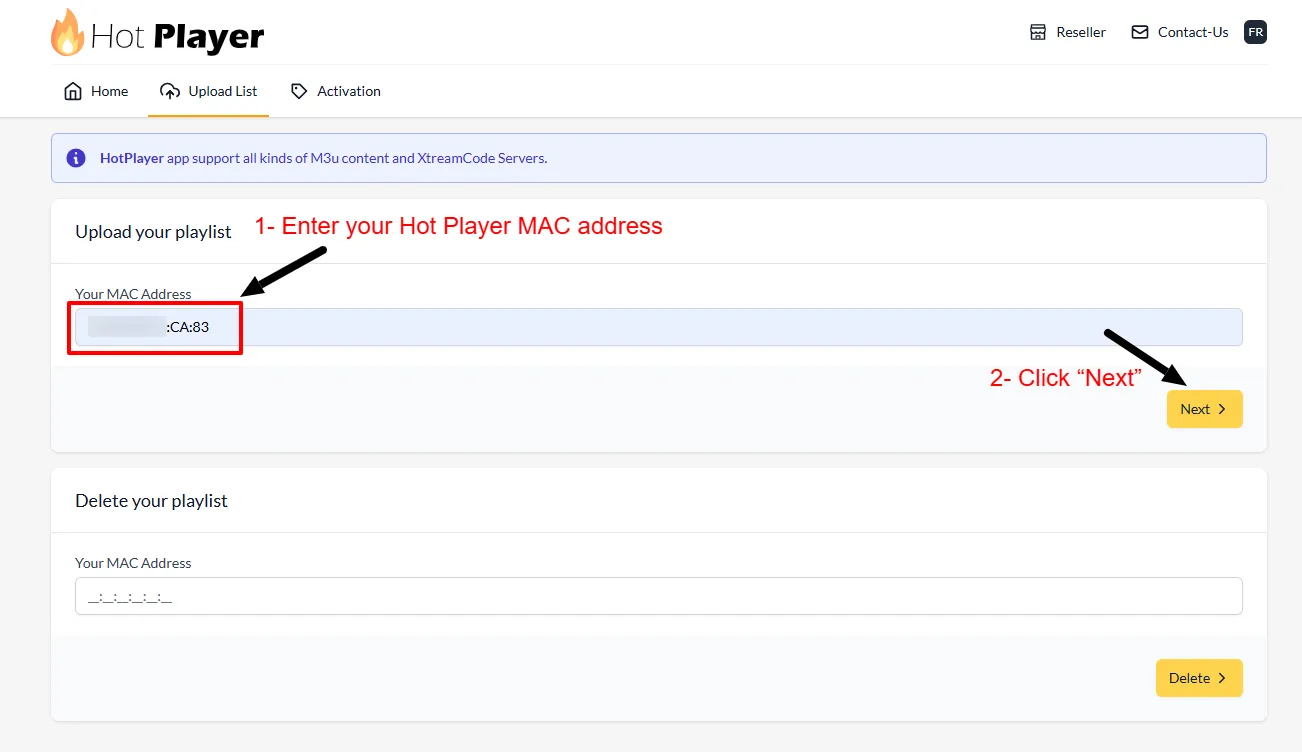
3Enter the MAC Address from your Roku device and click Next.

Step 3

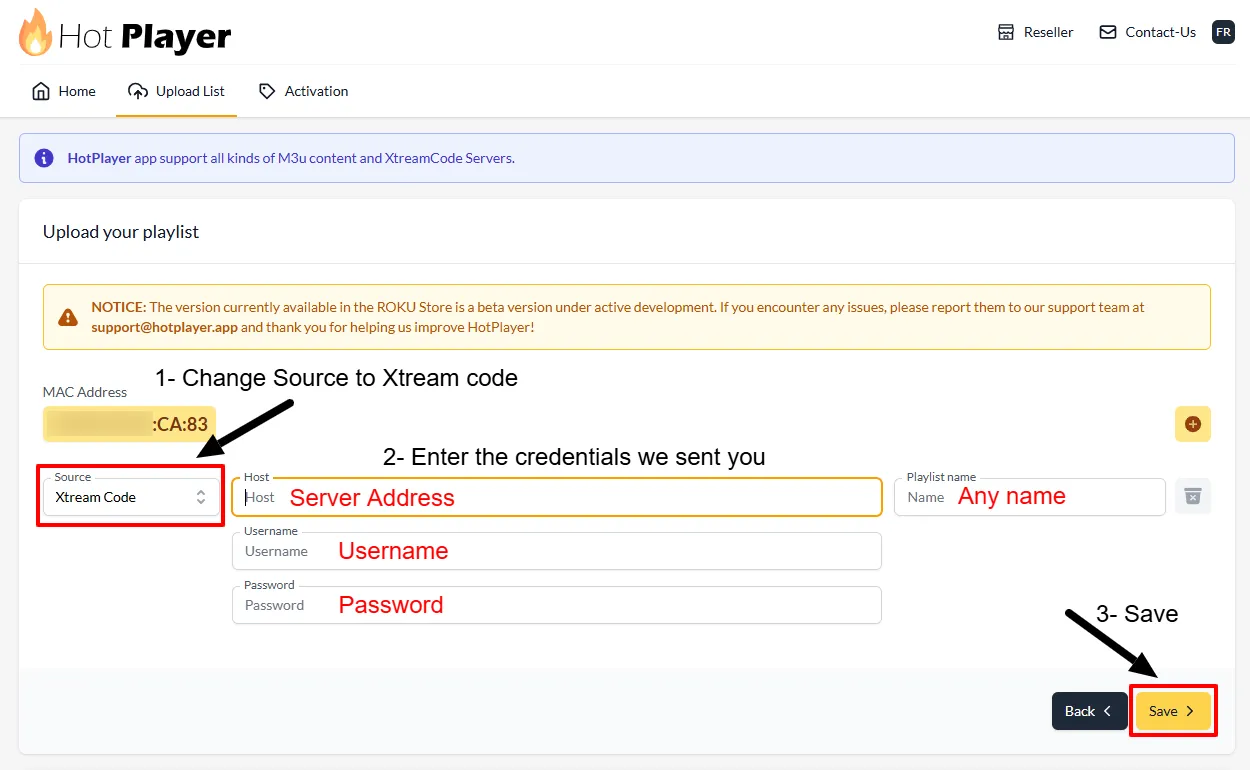
4Change the Source to “Xtream Code”.
5Fill in your IPTV details:
â€ĸ Playlist Name: Any name
â€ĸ Host: Server Address from welcome email
â€ĸ Username & Password: Your credentials
Click Save.
6Return to your Roku device and click Refresh or restart the Hot Player app.
7Your IPTV channels should now load. You’re ready to watch! 🎉

💡 Tip: For best streaming quality on Roku, ensure at least 25 Mbps for HD content and 50+ Mbps for 4K content.

Frequently Asked Questions
❓ Where do I find the MAC Address on my Roku?
Open the Hot Player app and the MAC address is displayed automatically on the main screen.
❓ What if Hot Player is not available in my region?
Try searching for “Hot IPTV” instead of “Hot Player”. If still unavailable, check if your Roku device region settings can be changed, or consider using an Android TV box as an alternative.
❓ How much does Hot Player cost?
Hot Player offers a free trial period. After the trial, a license may be required. Check hotplayer.app for current pricing.
❓ Can I use multiple playlists on one Roku device?
Yes, Hot Player supports multiple playlists through the online configuration portal at hotplayer.app.
❓ Why are my channels not loading?
Make sure your MAC address is entered correctly on hotplayer.app, your credentials are correct, and try restarting the Hot Player app on your Roku.
❓ Which Roku devices support Hot Player?
Hot Player works on all Roku devices: Roku Express, Roku Streaming Stick, Roku Ultra, Roku TV, and Roku 4K models.

đŸ“ģ

Smart TV Setup Guide — All Brands

âąī¸Time Required:5-7 minutes
📱Player:Hot Player
✅Difficulty:App Store

Compatible with: LG WebOS, Samsung Tizen, Sony, TCL, Hisense, Vizio, and other major Smart TV brands.

Compatible players: Hot PlayerPerfect Player

âš ī¸ If your Smart TV has the Google Play Store, please follow the Android TV guide above instead of this one.

â„šī¸ Hot Player is a third-party app and is NOT owned or managed by us. It may require purchasing their own license after the trial period.

Step 1
Search for Hot Player in Your TV App Store
1On your Smart TV, open your built-in App Store (LG Content Store, Samsung Apps, etc.).

Step 1

2In the search bar, type “Hot IPTV” or “Hot Player”.
3Select Hot Player from the results.
4Click “Install” or “Download”.
Step 2
Get Your TV MAC Address
1Open the Hot Player app on your Smart TV.

Step 1

2Your MAC Address is shown on screen. Write it down or photograph it — you will need it in the next step.
Step 3
Configure Your Playlist Online
1On your phone or computer, visit hotplayer.app.

Step 1

2Click “Upload List” in the menu.

Step 2

3Enter the MAC Address from your Smart TV and click Next.

Step 3

4Change the Source to “Xtream Code”.
5Fill in your IPTV details:
â€ĸ Playlist Name: Any name
â€ĸ Host: Server Address from your welcome email
â€ĸ Username & Password: Your credentials
Click Save.
6Return to your Smart TV and click Refresh or restart Hot Player.
7Your IPTV channels should now load. Ready to watch! 🎉

💡 Tip: For best streaming quality on Smart TV, ensure at least 25 Mbps for HD content and 50+ Mbps for 4K.

Frequently Asked Questions
❓ Where do I find the MAC Address on my Smart TV?
Open the Hot Player app — the MAC address is shown automatically on the main screen.
❓ What if Hot Player is not in my TV’s app store?
Try searching “Hot IPTV”. If still not found, your TV brand may not support it. Consider using an Android TV box (Nvidia Shield, Mi Box) or a Firestick instead.
❓ Can I use multiple playlists on one Smart TV?
Yes, Hot Player supports multiple playlists configured via hotplayer.app.
❓ Why are my channels not loading?
Verify the MAC address and credentials are entered correctly. Try restarting the Hot Player app. Check your internet connection speed.
📡

BuzzTV Box Setup Guide

âąī¸Time Required:5-8 minutes
📱Player:XC API
✅Difficulty:Xtream Codes

Compatible with: BuzzTV XPL 3000, XRS 4000, XRS 4500, E2000, and all BuzzTV Android boxes.
Compatible players: XC API (Built-in)
Method 1
XC API Login — Recommended
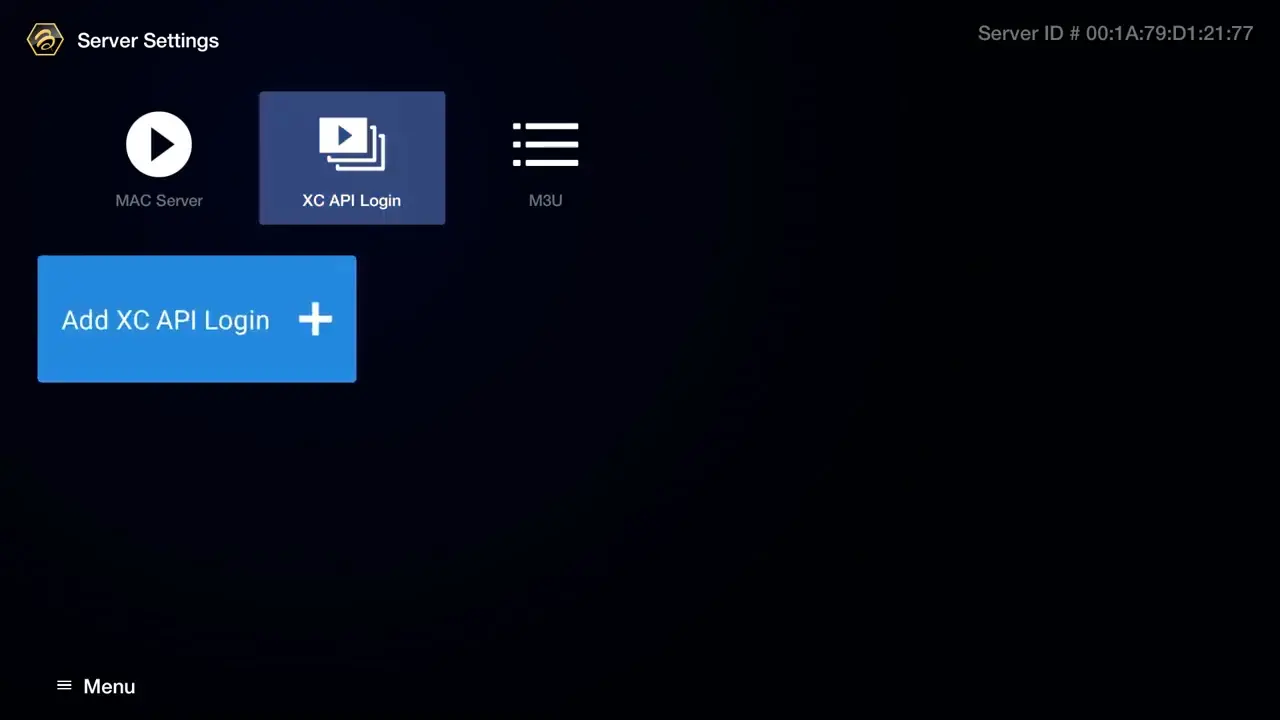
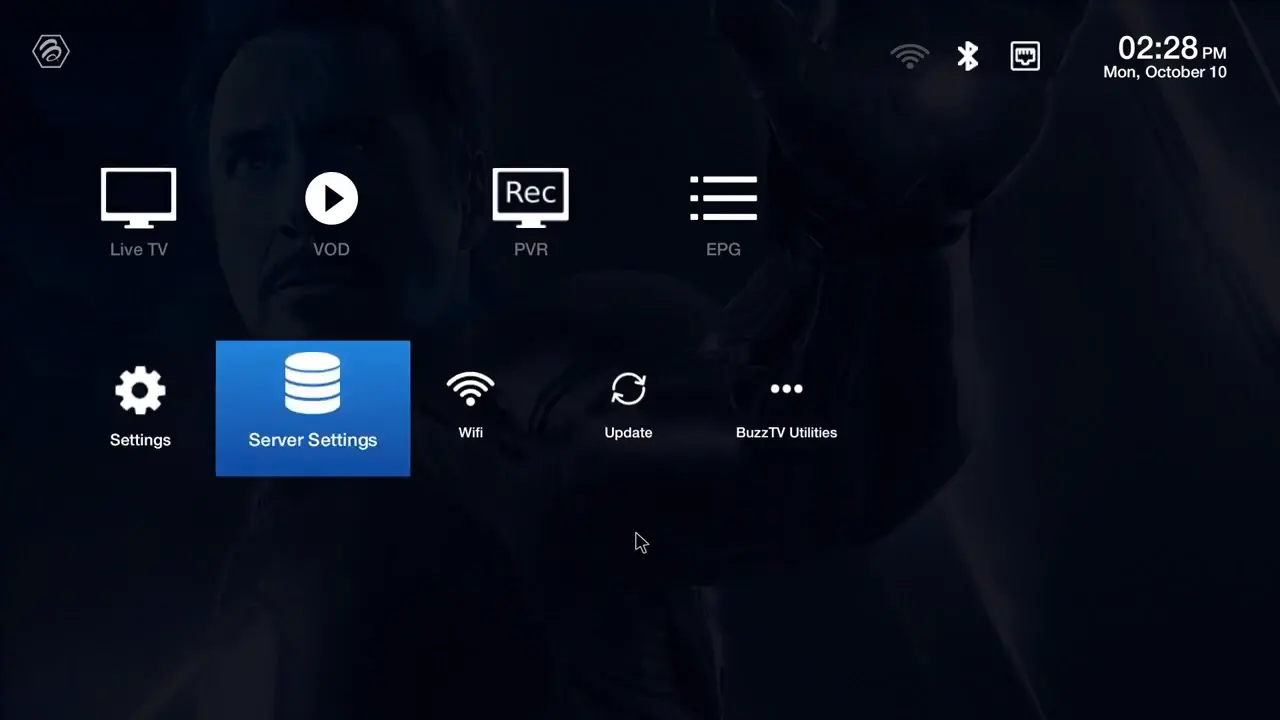
1From the BuzzTV home screen, navigate to Server Settings.
Step 1
2Select XC API Login → Add XC API Login.
Step 2
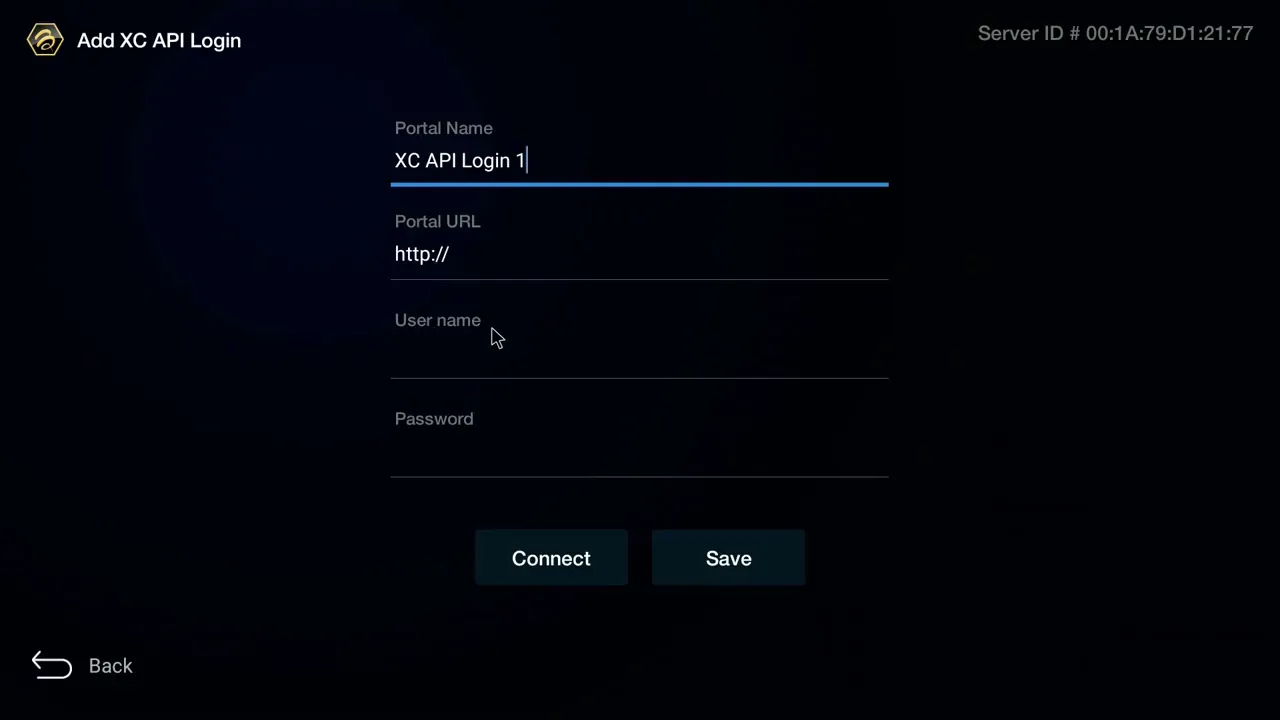
3Configure your connection:
â€ĸ Portal Name: Any name (e.g. “Best Canadian IPTV”)
â€ĸ Portal URL: Server URL from welcome email
â€ĸ Username: Your username
â€ĸ Password: Your password
Step 3
4Press “Connect” or “Save”.
5Return to the home screen and select Live TV to start watching! 🎉
Frequently Asked Questions
❓ What is the difference between XC API Login and MAC Server?
XC API Login uses your Xtream Codes username and password (which is what our service provides). MAC Server uses a MAC address registration. Our service uses XC API, so always choose XC API Login.
❓ Which method should I use?
Use XC API Login — it is the correct method for our service and the most stable connection type for BuzzTV boxes.
❓ Why won’t my channels load?
Double-check your Server URL, Username, and Password. These are case-sensitive. Make sure there are no extra spaces. Also check your internet connection.
❓ Can I use multiple IPTV services on BuzzTV?
Yes. BuzzTV allows you to add multiple XC API portals. Each service is listed separately and you can switch between them from the Server Settings menu.
đŸ“ē

Formuler & Dreamlink Setup Guide

âąī¸Time Required:5-8 minutes
📱Player:MyTVOnline / DOL2
✅Difficulty:Xtream Codes

Compatible with: Formuler Z8, Z10, Z11, GTV, and all Formuler & Dreamlink Android TV boxes.

â„šī¸ Unlike MAG boxes, Formuler and Dreamlink boxes do not require MAC address registration. You only need your Username and Password from your welcome email.
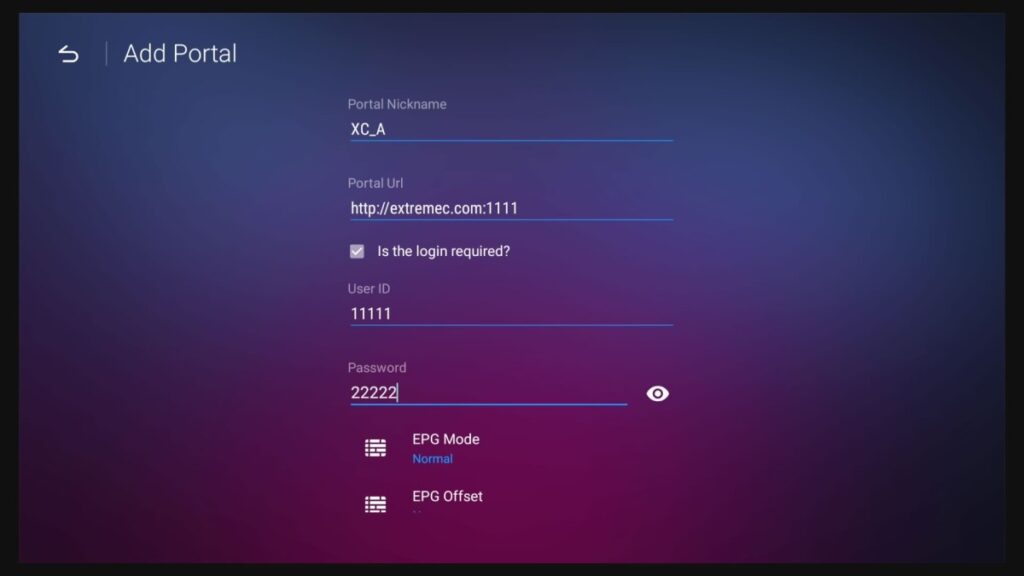
Method 1
Formuler Z — MyTVOnline 2 & 3
1Open MyTVOnline 2 or MyTVOnline 3 from the Formuler home screen.
Step 1
2Navigate to Menu → Connections → Add Portal.
3Configure your connection:
â€ĸ Portal Name: Any name
â€ĸ Portal URL: Server URL from welcome email
â€ĸ Login Required: Enable this option
â€ĸ Username & Password: Your credentials
4Press “Connect” to establish the connection.
5Your channels should now load — ready to watch! 🎉
Method 2
Dreamlink — DOL2 App
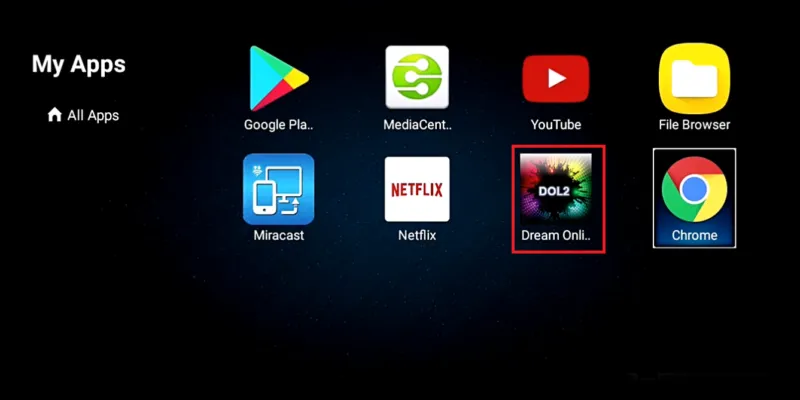
1Open the DOL2 App from the Dreamlink home screen.
Step 1
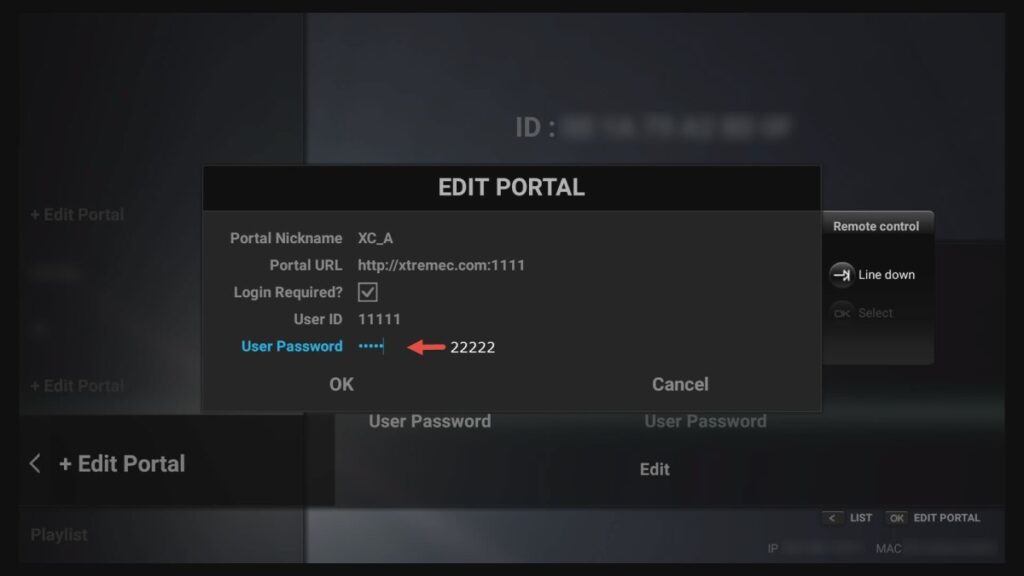
2Go to Menu → Portals → Edit Portal.
3Enter your portal configuration:
â€ĸ Portal Title: Any name
â€ĸ Portal URL: IPTV server URL
â€ĸ Login Required: Yes
â€ĸ Username & Password: Your credentials
Step 3
4Save the configuration and restart the app to connect.
Example Configuration
Portal: http://your-server.com
Username: your_username
Password: your_password

Frequently Asked Questions
❓ What is the difference between MyTVOnline 1 and 2?
MyTVOnline 2 and 3 are newer versions with improved performance and Xtream Codes support. We recommend MyTVOnline 2 or 3 for best compatibility.
❓ Do I need to register my MAC address for Formuler?
No. Unlike MAG boxes, Formuler devices use Xtream Codes login. Just enter your username and password — no MAC registration required.
❓ Why won’t my channels load?
Verify the Portal URL (no trailing slash), Username and Password are exact matches to what was sent in your welcome email. Check your internet connection and try restarting the app.
❓ Can I use multiple IPTV services on Formuler?
Yes. You can add multiple portals in MyTVOnline and switch between them from the Connections/Portals menu.
đŸ“Ļ

MAG Box

❌ Not Supported

We’re sorry, but we no longer support MAG Box devices. Please choose one of our other supported devices above for the best streaming experience. We recommend a Firestick, Android TV Box, or BuzzTV as excellent alternatives.

🔧

Troubleshooting Tips

If you experience buffering, loading issues, or missing channels, try the steps below before contacting support.

đŸ“ļ
Check Internet Speed

A stable connection of at least 15–20 Mbps is required for smooth HD streaming. Run a speed test at fast.com to check.

🔐
Verify Your Credentials

Make sure your Xtream Codes credentials (username, password, server URL) are entered exactly as received. These are case-sensitive.

🔄
Update Your Player App

Update your IPTV player app to the latest version. Outdated apps cause playback and loading issues.

🔁
Restart Devices

Restart both your streaming device and your router/modem. This fixes most connectivity issues.

🌐
Check for VPN Interference

If you’re using a VPN, try switching to another server or temporarily disabling it to test whether it resolves buffering.

đŸ—‘ī¸
Clear App Cache

Go to your device’s Settings → Apps → [Your Player] → Clear Cache. Then reopen the app and test again.

📡
ISP Throttling

Some internet providers may restrict IPTV traffic. If you suspect this, using a VPN can often improve access and reduce buffering.

Still having issues? Our support team is available via WhatsApp and email. Contact us and we’ll help you get set up as quickly as possible.

Scroll to Top